
WeCom Intelligent Bot
Scan once with WeCom on your phone to bring a Halo Digital Human into WeCom, where colleagues can message it or @mention it in groups. Manual setup works too.
You connect the bot yourself, in Halo and in WeCom on your phone; Halo can't scan or enter keys for you.
Before you start
- A WeCom account, with the WeCom app on your phone.
- Halo running. The bot stays connected through Halo, so it doesn't reply while Halo is closed or the computer sleeps; see Keep Digital Humans running.
Two things are involved: the bot in WeCom only carries messages, while the Digital Human in Halo understands them and does the work. The bot is the door; the Digital Human is the person behind it. Scan to add sets up both in one go.
Scan to add
- Open Settings › Message Channels, find WeCom Intelligent Bot and click Scan to add.
- In the "Scan to add WeCom Bot" dialog, scan the QR code with WeCom on your phone, then tap "Agree" on the phone. The code is valid for 5 minutes; while you wait, you can click Regenerate for a new one.
- Halo creates a new Digital Human, "WeCom Assistant …", binds it, and the dialog says "Bot added successfully".
- Follow the dialog: "Next step: open WeCom and send any message to this bot. Your user ID will be bound as the owner automatically — no manual setup needed." Click Got it.
- In WeCom, find the bot and send it a direct message. It first replies "✅ You are now bound as the owner of this bot, with full access." and then answers you.
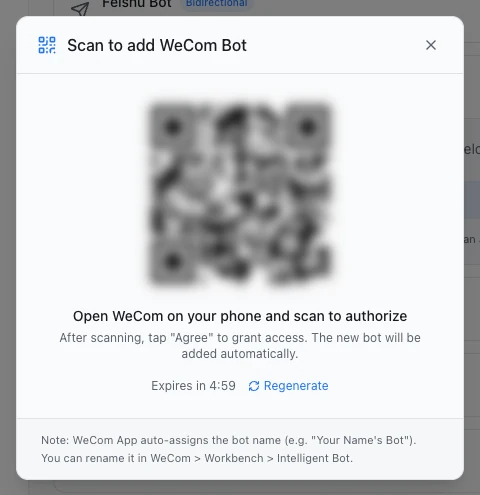
The first person to message the bot directly becomes its owner
Bots added by scanning have Permission Control on. Whoever messages the bot directly first becomes its owner, so send the first message yourself right after adding it. For what owners and guests can do, see Owner and guest permissions.
WeCom names the bot automatically (for example "Your Name's Bot"); you can rename it in WeCom under "Workbench › Intelligent Bot".
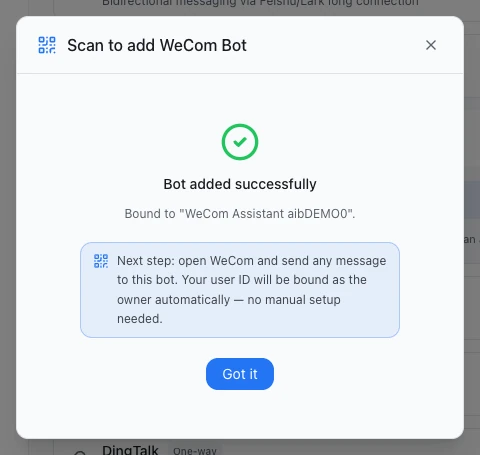
Done
The bot replies that you're bound as its owner, and the Digital Human answers whatever you send next. Under Settings › Message Channels, the dot next to the bot turns green and the WeCom Intelligent Bot card header shows "1 connected".
Give it to an existing Digital Human
Scanning from Settings always creates a new Digital Human. To have an existing one answer the bot, either:
- open that Digital Human, switch to Capabilities and settings, and under Messages & Notifications › Bot Access click Scan to add a bot › WeCom bot, then scan as above; or
- in the bot's card, pick another Digital Human under Replies › Backend. Halo asks "Rebind this bot?"; once you confirm, the previous Digital Human no longer receives this bot's messages.
A bot can be bound to only one Digital Human.
Use it in groups
- Add the bot to a WeCom group.
- @mention the bot when you talk to it. WeCom forwards only messages that @mention it.
- By default its replies quote your message (Quote Reply (Group)), so it's clear whom it's answering.
People in the group are owners or guests: the owner can have it do anything, while guests can by default only chat and use memory. A bot with no owner yet does nothing in groups and only asks people to message it directly first to set an owner.
Reply settings
Expand the bot under Settings › Message Channels. Under Replies:
| Setting | Default | What it does |
|---|---|---|
| Backend | The Digital Human created by the scan | Who replies: a Digital Human, or a member of a team |
| Reply Scope | All messages | All messages: replies when @mentioned in groups and in direct chats; Group chats only: direct messages are declined; Direct messages only: group messages get no reply |
| Streaming | Off | On: the reply is written into one message as it's produced; off: it's sent once it's done. In groups, Quote Reply (Group) must be on too |
| Quote Reply (Group) | On | Group replies quote the message they answer. Turning it off also turns Streaming off |
| Processing Notice | On | If there's no reply within 5 seconds, it first sends "已收到,正在处理…" ("Received, working on it…"). With Streaming on, the line appears inside the reply being written instead |
Changes save automatically.
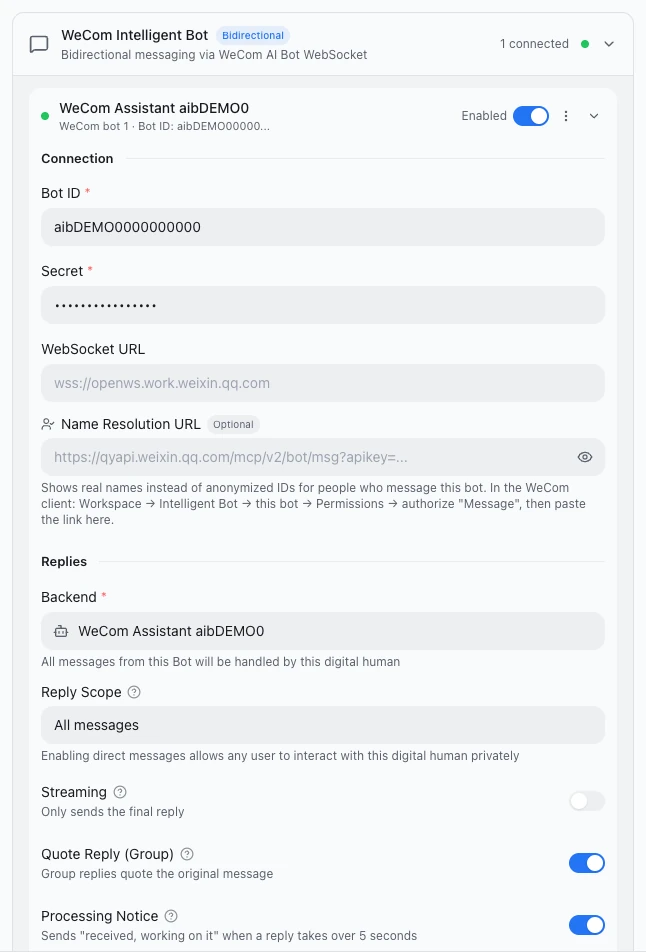
Manual setup
If you've already created an Intelligent Bot in WeCom in API mode with a long connection, and have its Bot ID and Secret, you can connect it by hand:
- Under Settings › Message Channels › WeCom Intelligent Bot, click Manual setup. An empty, disabled bot is added.
- Under Connection, enter the Bot ID (it starts with
aib) and the Secret. Leave WebSocket URL as it is. - Under Replies › Backend, pick a Digital Human.
- Turn on the switch at the top right of the bot. When the status reads Connected, you're done.
- Check Permission Control under Permissions. When it's off, it says "Everyone has full access": anyone who messages the bot can have the Digital Human do anything. Turning it on is recommended; see Owner and guest permissions.
Creating the bot on the WeCom side follows WeCom's own steps and menus; Halo has no guide for that part.
Show senders' real names
New WeCom bots hide who sent a message, so contacts show only an ID. Paste the authorization link WeCom gives you into Name Resolution URL under Connection, and Halo can look up real names. The authorization lasts 7 days; paste a fresh link when it expires. See WeCom: show real names.
The same bot on two computers
WeCom keeps only one computer connected to a bot at a time. If Halo on another computer connects the same bot, this one steps back and shows Standby and "In use on another device". To use it here, click Use on this device; the other computer switches to standby.
Limits
- Within 24 hours of the person's last message, replies quote the original message; after that, replies and files are sent as plain messages without the quote.
- One message holds about 20,000 bytes; longer replies are split into several messages.
- Images up to 10 MB and files up to 20 MB can be sent; images over 10 MB are sent as files.
- It receives text, images, mixed text and images, voice (as WeCom's transcript), files and video.
Troubleshooting
"Setup failed" or "Scan failed" after scanning
Click Try again and scan again. If it still fails, your company's WeCom may not allow you to create Intelligent Bots, or your network can't reach WeCom; ask your company's WeCom or network administrator.
"QR code expired. Please regenerate."
Once the code expires, the dialog shows "Setup failed" with this message. Click Try again to get a new code.
The bot doesn't reply to direct messages
- Halo is running and the card shows Connected. If it shows Disconnected, click ⋮ › Reconnect at the top right of the bot.
- Reply Scope isn't Group chats only.
- A Digital Human is picked under Backend, and it doesn't say "Binding unavailable".
For more, see Bot not replying.
In a group, the bot only says "This bot has no owner yet, so it cannot execute tasks."
The bot has no owner yet. Send it a direct message first, and you become its owner.
"This bot is already in use by another instance. Each bot can only be bound to one digital human."
That Bot ID is already connected through another bot entry. Use that entry, or delete it first (⋮ › Delete).
Next steps
- Owner and guest permissions: decide what others in a group can have the Digital Human do.
- Message channels overview: let the Digital Human message contacts on its own.
- Feishu Bot: connect Feishu the same way.
- Digital Human teams: have several Digital Humans split the work, then hand the bot to one of them so it can bring in its teammates.