
Message channels overview
Let colleagues reach Halo Digital Humans from WeCom, Feishu or WeChat, or have results sent out: two-way bots versus one-way notifications, and which to use.
You connect bots yourself under Settings › Message Channels, and scanning needs your phone; Halo can't connect them for you.
Two-way bots and one-way notifications
Settings › Message Channels has two kinds of channel:
| Two-way bots | One-way notifications | |
|---|---|---|
| Which ones | WeChat Bot, Feishu Bot, WeCom Intelligent Bot | Email, WeCom, DingTalk, Feishu, Webhook |
| What they do | People message the bot in their chat app and a Digital Human replies; the Digital Human can also message people who have contacted it | Digital Humans can only send notifications out; nothing comes back |
| Who uses them | Each bot is bound to one Digital Human | All Digital Humans share one set of settings |
| Good for | Letting colleagues or customers get things done with a Digital Human in direct or group chats | Emailing a result after a run, or pushing it to another company system |
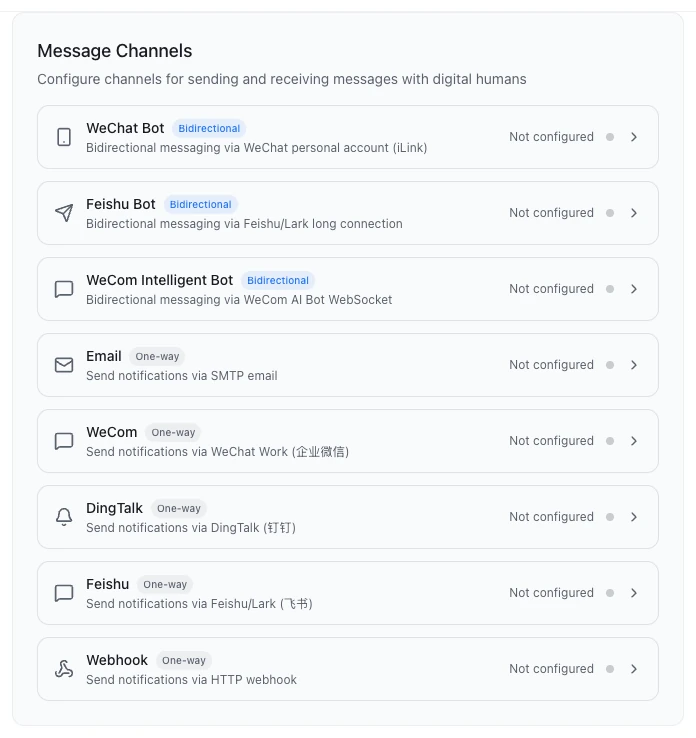
- DingTalk is available only as a one-way notification for now; a DingTalk bot can't be connected yet.
Which bot to choose
| WeCom Intelligent Bot | Feishu Bot | WeChat Bot | |
|---|---|---|---|
| How to connect | Scan to add, or fill in by hand | Scan to add (creates the Feishu app for you), or fill in by hand | Scan to connect |
| Direct chats | Yes | Yes | Yes |
| Group chats | Yes, @mention the bot | Yes, @mention the bot by default | No |
| Owner and guest permissions | Yes | Yes | No: everyone who messages it is treated as the owner |
| Replies that appear as they're written | Yes | Yes | No |
| Watch out for | One bot can be connected on only one computer at a time | If your company reviews apps, an administrator must approve it before it can reply | After Halo restarts, a contact must message first before the bot can message them again |
| Setup guide | WeCom Intelligent Bot | Feishu Bot | WeChat Bot |
How bots map to Digital Humans
- A bot is bound to one Digital Human; a Digital Human can have several bots.
- When you scan to add a WeCom or Feishu bot under Settings › Message Channels, Halo creates a new Digital Human in the Halo Workspace and binds it, named "WeCom Assistant …" or "Feishu Assistant …".
- To give an existing Digital Human a bot, open it, switch to Capabilities and settings, and under Bot Access in Messages & Notifications click Scan to add a bot (choose WeCom bot, Feishu bot or WeChat bot) or Bind an existing bot. Click Unbind to remove one.
- A bot can also be answered by a team member: under the bot's Backend, pick a member listed under "Team: ‹team name›", and it can bring in its teammates. To set up a team, see Digital Human teams.
- Global Digital Humans have no workspace and can't take a bot.
Using it in the chat app
- In a direct chat, just send a message; in a group, @mention the bot. WeCom groups deliver only messages that @mention the bot, and Feishu requires the @mention by default.
- If the Digital Human hasn't replied within 5 seconds, it first sends "已收到,正在处理…" ("Received, working on it…"). This is the Processing Notice, on by default; with Streaming on, the line appears right away inside the reply being written instead of as a separate message.
- Messages you send while it's busy aren't lost: ones it can use right away get "✏️ 已加入正在进行的处理" (added to the work in progress); the rest get "✏️ 已收到补充消息" (follow-up received) and are handled together once the current round ends.
- Long replies are split into several messages numbered like (1/3), up to 10; the rest can be read in Halo.
- Send
/stopto stop it, or/clearto clear the context and start over. In a group, @mention the bot first, then the command. - Ask for files directly, such as "Send me the report". It can send only files inside its own workspace or the temporary folder.
See bot conversations in Halo
Open the Digital Human and switch to the IM sessions tab (it appears once a bot is bound). Contacts are on the left and the conversation on the right, view-only:
- While it's replying, you can click Stop generation; when it's idle, you can click Clear session.
- Click Continue in client to copy the conversation into a new chat with the Digital Human and carry on there.
Let the Digital Human message people
- People and groups who have messaged the bot become contacts automatically. The Digital Human's IM Push capability is on by default, so it decides for itself when to message a contact.
- Under Reachable Contacts in Capabilities and settings › Messages & Notifications, you can Rename a contact (call it "Marketing group", and "post it to the marketing group" will find it), Remove it, or turn on Auto-sync run result to send the final reply to that contact after each successful run (off by default).
- Add from existing chats lets this Digital Human post into chats that another Digital Human's bot knows; replies there still go to the other Digital Human.
- When the Digital Human needs a decision, it messages its owner privately, and the owner just replies in that direct chat. Without Permission Control (WeChat bots, for example), turn on Auto-sync run result for your own direct chat first, or the questions won't be sent; see Who can answer the Digital Human's questions.
One-way notifications are also sent when the Digital Human decides to. See Notifications and proactive push.
Who can make it do things
WeCom and Feishu bots have Permission Control: the owner can have it do anything, while everyone else (guests) can by default only chat and use memory. Bots added by scanning turn Permission Control on, and the first person to message the bot directly becomes its owner. WeChat bots have no permission control. See Owner and guest permissions.
Troubleshooting
If a bot doesn't reply, work through Bot not replying.
Next steps
- WeCom Intelligent Bot: connect it with one scan.
- Feishu Bot: scan to create the Feishu app and bind it.
- WeChat Bot: chat with a Digital Human in your own WeChat.