
Owner and guest permissions
Use Permission Control to split WeCom and Feishu bot users into owners and guests: owners can have the Digital Human do anything, guests only what you allow.
You change these settings yourself under Settings › Message Channels; Halo can't change them for you.
Owners and guests
People who message a bot are one of two kinds:
| Owner | Guest | |
|---|---|---|
| Who | The people listed under Owner User IDs | Everyone else |
| What they can have the Digital Human do | Anything, just as you can in Halo | By default only chat and use memory; you can allow some tools |
| Can they have it message other people | Yes | Not by default (you can allow it) |
| Can they have it set reminders | Yes | No |
| Can they answer its questions | Yes, by replying in the direct chat | No |
Only the WeCom Intelligent Bot and the Feishu Bot have permission control. The WeChat Bot doesn't: everyone who messages it is treated as the owner.
Turn on Permission Control
- Open Settings › Message Channels and expand the bot.
- Turn on Permission Control (for a WeCom bot, it's under Permissions). While it's off, it says "Everyone has full access": anyone who messages the bot can have the Digital Human do anything.
- Enter the owners' IDs under Owner User IDs, separated by commas or new lines. If you don't know your ID, message the bot directly and ask "What is my user ID?".
Bots added by scanning have Permission Control turned on automatically.
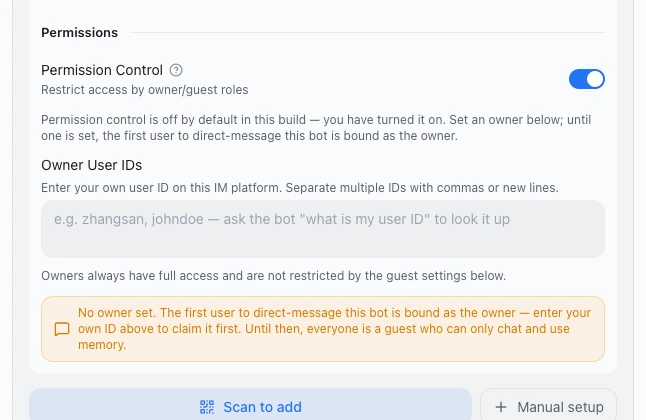
The first person to message it directly becomes the owner
While Permission Control is on and Owner User IDs is empty:
- The first person to message the bot directly becomes the owner, and the bot replies "✅ You are now bound as the owner of this bot, with full access."
- Until then, everyone is a guest who can only chat and use memory. Settings shows "No owner set. The first user to direct-message this bot is bound as the owner…".
- Group chats never claim an owner. A bot without an owner does nothing in groups and, at most once every 10 minutes, says "This bot has no owner yet, so it cannot execute tasks."
Don't let someone else get there first
Right after adding the bot, message it directly yourself, or enter your own ID under Owner User IDs first.
Allow tools for guests
Once there's an owner, Guest Permissions appears:
- Turn on Guest Access. While it's off, it says "Guests can only chat and use memory".
- Under Guest Allowed Tools, check the tools to allow. The first time you turn it on, only Read files, Find files and Search contents are allowed.
| Group | Tools |
|---|---|
| View files | Read files, Find files, Search contents, limited to this Digital Human's workspace |
| Internet | Open web pages, Web search |
| Other | Subtasks |
| Change files and run commands (Risky) | Write files, Edit files, Run commands (No commands, Only these or Any command) |
| AI Browser, Email, Notifications, Digital Humans, File Send, Text Extraction (OCR), Terminal | Halo's own capabilities. Notifications lets guests have it message contacts; Email, File Send and Terminal are higher risk, so allow them with care. Terminal can be turned on only when Run commands is set to Any command |
| Skills, MCP servers you installed | The skills this Digital Human can use, and the MCP servers you installed |
Memory is always available and isn't affected by these settings. If you turn Guest Access off and on again, your earlier choices come back.
"Any command" hands over your computer
Choosing Any command first asks "Allow any command?": "Guests will be able to run any command on your computer, including reading, changing or deleting any file, without the workspace limit." Once chosen, the setting keeps showing that warning. Don't choose it unless everyone in the chat is someone you trust.
Other limits on guests
- By default guests can't have the Digital Human message other contacts (they can once Notifications is allowed); they can never set reminders, and never get Operate Halo.
- Files the Digital Human sends must come from its workspace or the temporary folder, whoever asks.
- When messages from owners and guests in a group are handled together, they run with guest permissions.
- When a team member answers the bot, a guest's request keeps guest permissions across the whole team, including what teammates do for it.
Who can answer the Digital Human's questions
When the Digital Human needs a decision, it messages the owner privately. The owner can just reply in that direct chat, or answer in Halo. When work a team took on from a group chat gets stuck, that group is told: "「…」的这项工作在等主人决定。主人可以直接回复机器人的私聊,或在 Halo 里回答。" (the work is waiting for the owner, who can reply to the bot privately or answer in Halo). Guests can't answer.
With Permission Control off, questions go to direct-chat contacts that have Auto-sync run result on.
Requests from colleagues' computers
In a team across computers, requests from a colleague's Digital Human or from the colleague themselves follow a different setting: What others can ask it to do in the member settings. See Teams across computers.
Done
Permission Control is on and your ID is under Owner User IDs. When others message the bot or @mention it in a group, the Digital Human uses only the tools you allowed for guests.
Troubleshooting
Someone else messaged first and became the owner
Remove their ID from Owner User IDs and enter your own.
A guest asks it to look at a file and it says it can't
Guest Access is off, or the matching tool isn't checked. Set it up as in Allow tools for guests.
Next steps
- WeCom Intelligent Bot
- Feishu Bot
- Security, privacy and data flow: how Halo is secured overall.