
Saved teams and schedules
Keep a temporary collaboration or build a Halo team by hand: pick members, write a goal, then add a schedule, an HTTP trigger and periodic checks.
Just tell Halo
Keep this team for later.
Say it in the conversation that has the temporary collaboration. Halo keeps it as a standing team under Digital Humans › Teams.
Have the competitor research team produce a competitor report every Monday at 9 am.
Halo gives the team a schedule. Prerequisite: Operate Halo under + › Capabilities in the message box must be on.
Two ways to get a saved team
- Keep a temporary collaboration: once a team Halo formed in a conversation has done good work, click Keep this team in the team view, or say so as above. See Digital Human teams.
- Build one by hand: pick the members and write the goal yourself, as below.
Create a team
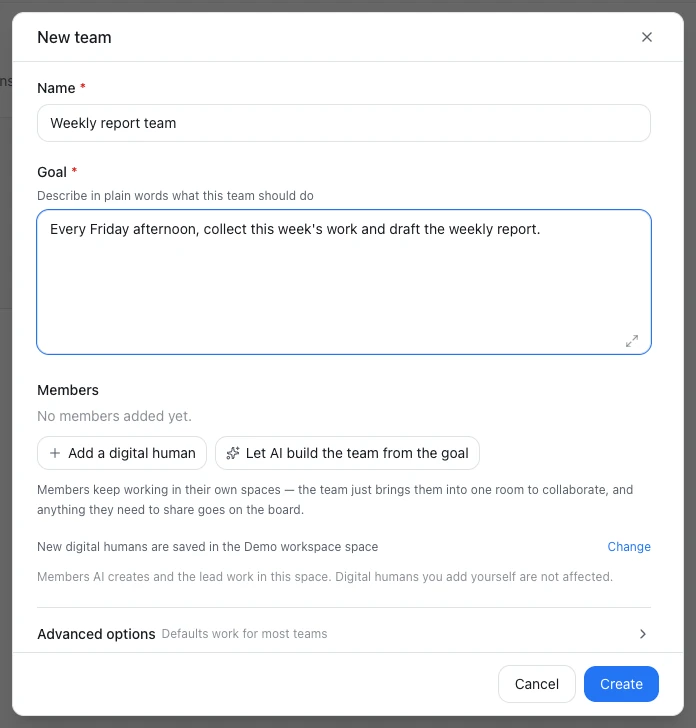
- Click Digital Humans on the left rail, switch to Teams and click New team.
- Fill in the Name and the Goal. Write the goal in plain words: what the team should get done. The lead breaks it down into tasks.
- Add members, one of two ways:
- Click Add a digital human and pick from the Digital Humans in all your workspaces. If none fits, choose New digital human… to create one on the spot.
- Click Let AI build the team from the goal. Halo proposes up to 5 members for the goal and lists each one's name and role under "Confirm the members AI will build". If they look right, click Confirm and create.
- Note the line "New digital humans are saved in the … space" in the form, and click Change if you want another workspace.
- If needed, expand Advanced options (the defaults usually suit):
- Coordination: Free mode (the default: members can talk to each other directly) or Managed mode (the lead assigns tasks and reviews results, and members talk along the reporting lines).
- When members need help: Work it out within the team first (the default, recommended) or Notify me directly.
- Click Create.
When the team is created, Halo makes a lead for it in the workspace you chose, named "‹team name› Lead". The lead breaks down the goal and hands out tasks; it doesn't appear in your My Digital Humans list.
Members built by AI only work when this team runs; they never run on their own. Dissolving the team deletes them, but the workspace they worked in stays.
Manage members
Click the gear, Team settings, at the top of the workbench. Under Members:
- Add member: add a Digital Human to the team; its member settings open once it's added. If the team has members on other computers, you're also asked "What people on other computers can have it do", which defaults to Read only.
- Write its Duty in this team. It applies only inside this team, and teammates read it when they hand out work. Changing the Digital Human's own settings affects it everywhere.
- Make lead: promote a member to lead; the old lead becomes an ordinary member.
- Remove member: a Digital Human you added leaves the team and loses only its duty and permissions in this team.
- Delete member: a member built by AI is deleted outright.
The lead can't be removed here.
Set a schedule
Under Schedule in Team settings, turn on Run on a schedule, then pick By interval or By time; the default is every hour. The choices work as they do for a Digital Human's schedule, see Schedules and triggers, but teams have no Only on mainland China working days switch. When the time comes, the lead starts a run on the team's goal.
Manual runs and the HTTP trigger don't depend on this switch; they always work.
Ways to run a team
- Click Run in Team settings; click Pause to stop the current run.
- Let the schedule run it.
- HTTP Trigger: copy the command under Team settings › Advanced so another program can start the team. Calling it from another device needs Remote Access on.
- In a conversation in the team's workspace, tell Halo: "Have the competitor research team run again, and focus on pricing this time."
Each run appears under Automated tasks in the workbench task list, view-only. A new run doesn't start while the previous one is still going.
A team you just kept waits for its collaboration to end
A team kept from a temporary collaboration can run on its own only after that collaboration has finished.
Periodic checks
Team members can ask a teammate, or themselves, to look at something on a fixed rhythm, such as "check the deployment every 30 minutes and tell me when it's done". Digital Humans set these checks up themselves. You see them under Periodic checks on it in the member's settings, and can click Stop (a stopped check can't be resumed).
To stop teammates from setting periodic checks on a member, turn off Let teammates set a periodic check on it in its member settings.
Limits for all teams
Settings › Advanced has a few safety limits that apply to every team. You rarely need to change them:
| Setting | Default | What it does |
|---|---|---|
| Digital Team Turn Timeout | 60 minutes | The longest one member can work in one turn |
| Digital Team Circuit Breaker Limits › Max messages per run | 2000 | The cap on messages between members in one run; the run stops when it's reached |
| Digital Team Circuit Breaker Limits › Max chained replies | 8 | The cap on back-and-forth between members with nobody stepping in |
| Digital Team Concurrency Limit | 10 | How many member turns can run at once on this computer |
Done
The team appears under Digital Humans › Teams. For a team with a schedule, a new run appears under Automated tasks when the time comes.
Troubleshooting
Clicking Create says "Add at least one member, or let AI build the team"
A team needs at least one member. Add one of your Digital Humans, or click Let AI build the team from the goal.
AI couldn't propose members
When the goal is too vague, AI may not find suitable members. Make the goal more specific: what it should produce and what the stages are.
Next steps
- The team workbench: hand out tasks, follow progress, answer decisions.
- Teams across computers: invite colleagues to bring their Digital Humans.