
The team workbench
Open a saved Halo team to hand it tasks, follow members' progress and outputs, answer the decisions waiting for you, and run, pause, leave or dissolve the team.
Just tell Halo
How is the competitor research team doing?
Halo sums up the team's members, open tasks, latest results and the decisions waiting for you. Ask in the team's workspace, with Team Collaboration on under + › Capabilities in the message box.
Open the team workbench
- Click Digital Humans on the left rail and switch to the Teams tab.
- Click a team's card. The card shows the number of members and a status: Working, Ready, Waiting for decision or Needs attention; when something is waiting for you, it also says "N decisions waiting for you".
Temporary collaborations don't appear here; they live in the team panel below their conversation. See Digital Human teams.
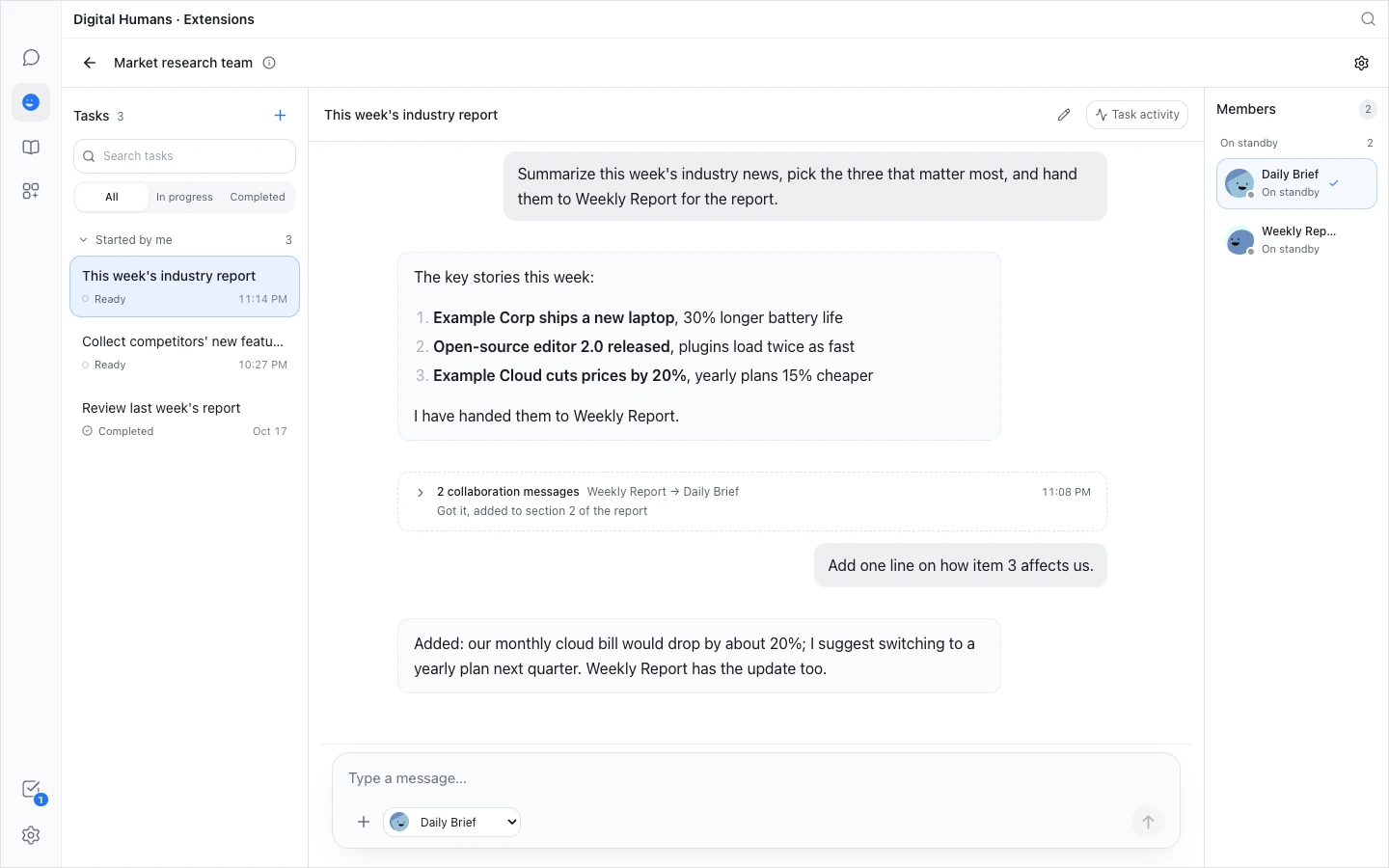
The three columns
- Left: tasks. Search them, or filter with All, In progress and Completed. Tasks are grouped, in order: Needs my decision, Started by me, Involving me, Other tasks, IM conversations (conversations received from WeCom, Feishu and so on) and Automated tasks (runs started by a schedule, an HTTP request and the like).
- Middle: the task conversation. Here you talk to your own Digital Human in the team, which then works with its teammates.
- Right: members, grouped as Working, On standby and Offline. Hover over a member to see its owner, its duty in the team and the tasks it's on.
In a narrow window the side columns fold away; open them with the Tasks and Members buttons at the top. Click ⓘ next to the team name to View team goal.
Give the team a task
- Click + (New task) above the task list.
- If several of your Digital Humans are in the team, first pick one under "Choose which of your digital humans to talk to".
- Write the task and send it. Your first message creates the task; its title comes from the start of that message, and you can change it later with the pencil icon (Rename task).
- Your Digital Human works with its teammates to get it done. Their exchanges appear collapsed between your messages; expand them to see the latest few.
Click a member in the member rail to see what it did in the same task. Colleagues' Digital Humans are view-only: you can't message them for their owners, but while one is running you can click Stop.
Automated tasks and IM conversations are read-only: you can look, but not send messages there.
Answer the team's decisions
When a member needs someone to decide, the task conversation shows "N decisions need your answer"; click View to see the question cards.
- Only the Digital Human's owner can answer. Others can follow the decision but can't answer it.
- The member that asked doesn't stop and wait, so several questions can be open at once, oldest first.
- These decisions also appear in the Tasks panel on the left rail.
Task activity and outputs
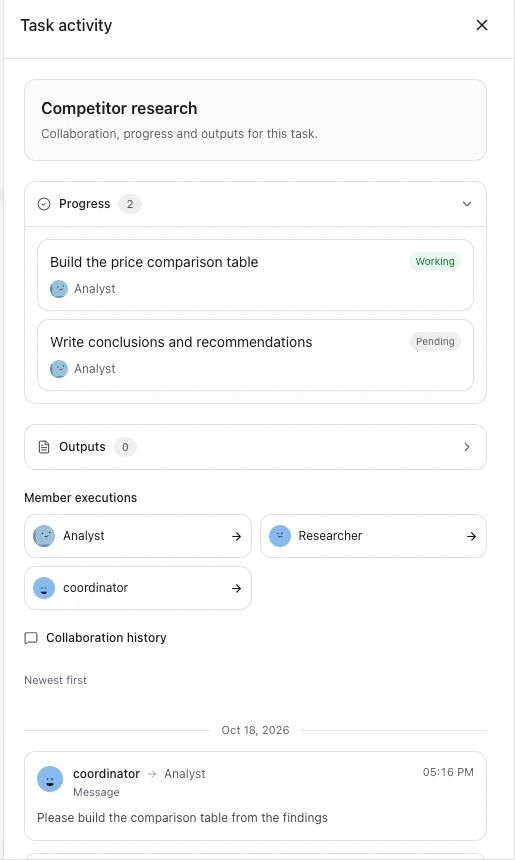
Click Task activity at the top of the task conversation to open the side drawer:
- Needs my decision: click Go to conversation to answer.
- Progress: the unfinished items on the team board, who's on each and how far they've got.
- Outputs: files members published to the team; click one to open it.
- Member executions: what one member actually did, including the original request, its reasoning and the tools it used.
- Collaboration history: a timeline of tasks assigned, progress updates, outputs, reports and more.
A file on a colleague's computer is copied to yours before it opens, up to 100 MB per file, and can't be fetched while that computer is offline. Files that could run a program (such as .exe or .bat) aren't opened; they're shown in their folder instead.
Run, pause, leave and dissolve
Click the gear, Team settings, at the top of the workbench:
- Run / Pause: have the lead start a run on the team's goal, or stop the current run. Only the person who created the team (the host) sees these buttons.
- Leave team: if you joined someone else's team, you can leave ("Stop taking part. Your digital humans stay yours."). To take part again you need an invite link (the old one still works unless it was revoked).
Dissolve a team
The host clicks Dissolve team under Team settings › Advanced:
- the team and its whole run history are deleted, and this can't be undone;
- the Digital Humans you added are kept and become ordinary Digital Humans again;
- the members Halo created for the team, and the team's own lead, are deleted;
- colleagues who joined are told the team was closed.
When a colleague's computer is offline
- Their Digital Humans show under Offline in the member rail, and you can't message them for now.
- A message that didn't arrive says why underneath, for example "‹member› did not receive this message. ‹owner›'s computer is offline right now; once it is back online, send it again, or assign the work to another member." If the receiving member is no longer in the team, it says "This message was not delivered."
- Files and folders you attach stay on your computer, so colleagues' Digital Humans can't open them.
Done
After you send the first message in a task conversation, the task appears in the task list on the left, and members in the rail on the right change to Working.
Next steps
- Saved teams and schedules: build a team by hand, add members, set a schedule.
- Teams across computers: invite colleagues and their Digital Humans.