
Store
Find Digital Humans and skills others built in the Halo Store, fill in a few settings and put them to work; plus updates, MCP servers and sharing your own.
Just tell Halo
Find a Digital Human in the Store that sums up tech news every day, and install it in this workspace.
Halo searches the Store, lists a few good matches for you to choose from, and installs your pick in the current workspace. Prerequisite: Operate Halo under + › Capabilities in the message box must be on.
Open the Store
Click Store on the left rail to open "Explore · Store":
- The search box at the top searches every source at once, matching names, descriptions, authors and tags.
- Below it are four tabs: Discover, Digital Human, Skill and MCP. Discover is the Store's front page; in the official build it lists everything (All Apps), and a company's own store may add featured picks and collections; the other three show one kind each, with category filters and Load more at the bottom.
- If the list looks out of date, click Refresh next to the search box.
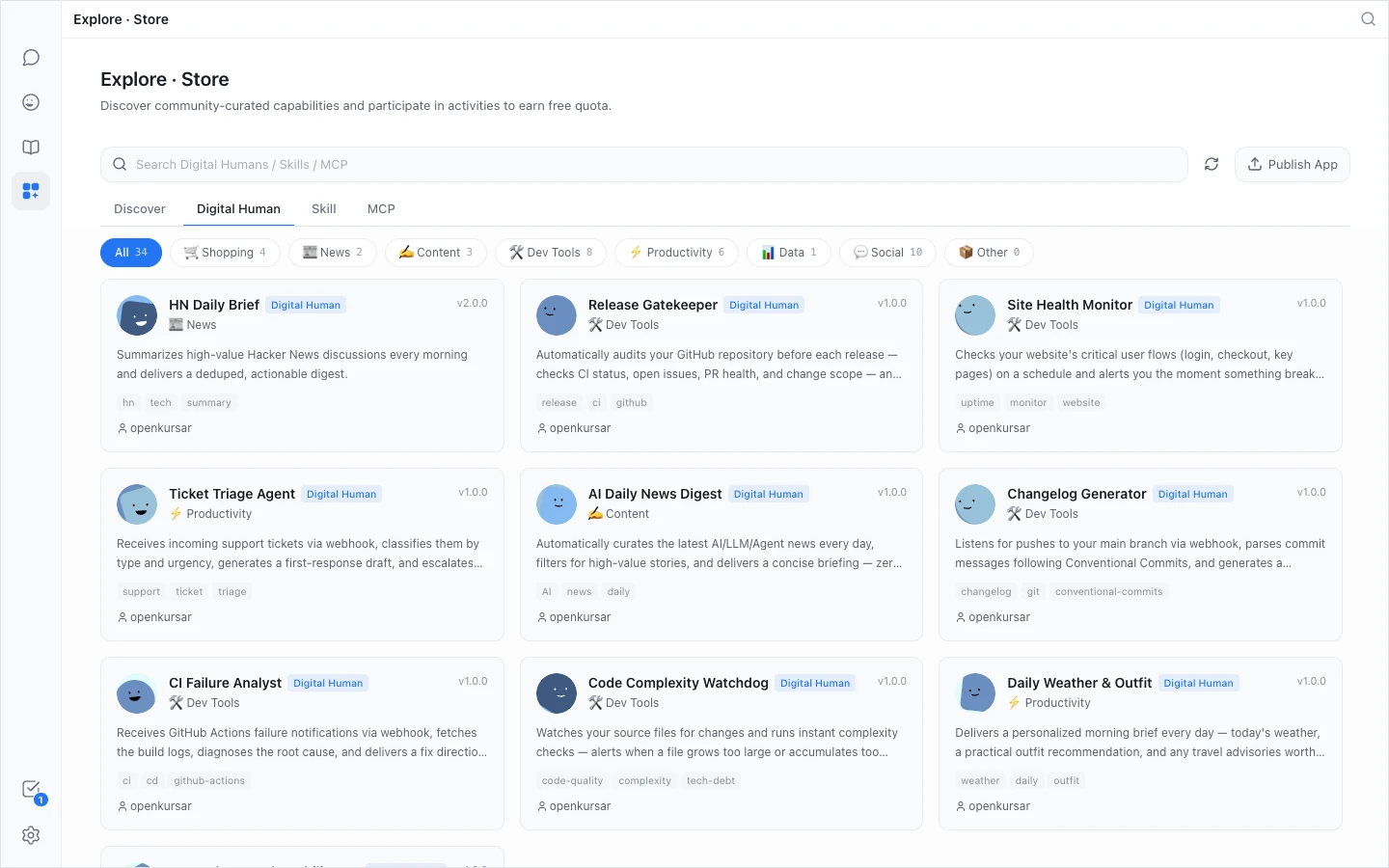
The Store draws on several sources: the official Digital Human Protocol (DHP) registry, the MCP Official Registry, Smithery, Claude Skills and SkillHub. Under Settings › App Store you can turn off sources you don't need or Add Registry; for a company store of your own, see Private store.
Install a Digital Human
- On the Digital Human tab, click a card. The details page shows its description, the Configuration it asks for, the skills and MCP servers it depends on (Dependencies), and its system prompt (click View system prompt).
- Click Install.
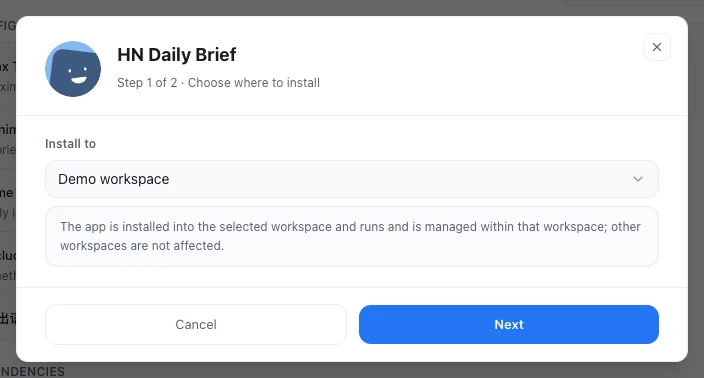
- Under Install to, choose a workspace. A Digital Human goes into one workspace; if you have only one, there's nothing to choose.
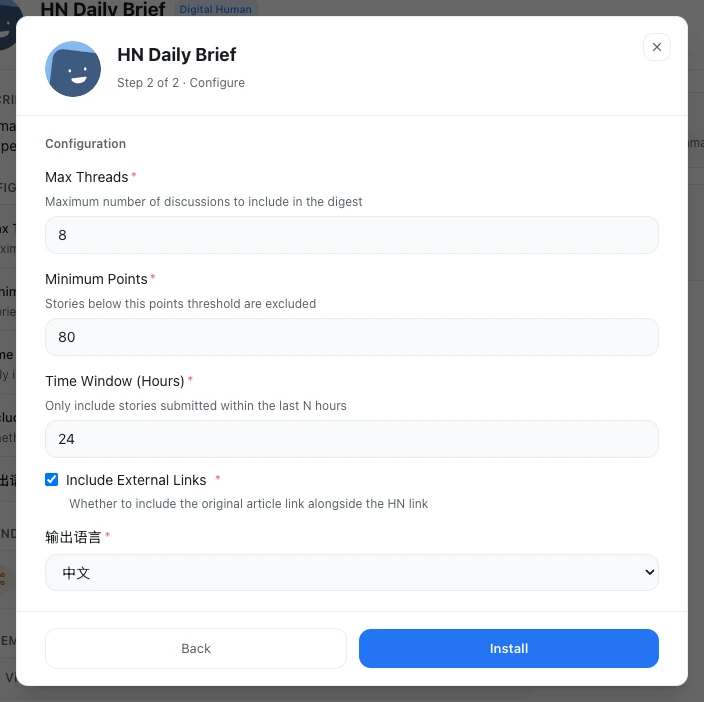
- If it has settings to fill in, click Next, fill in the required ones, then click Install; if not, just click Install.
- When the button says Installed, click Use to open it.
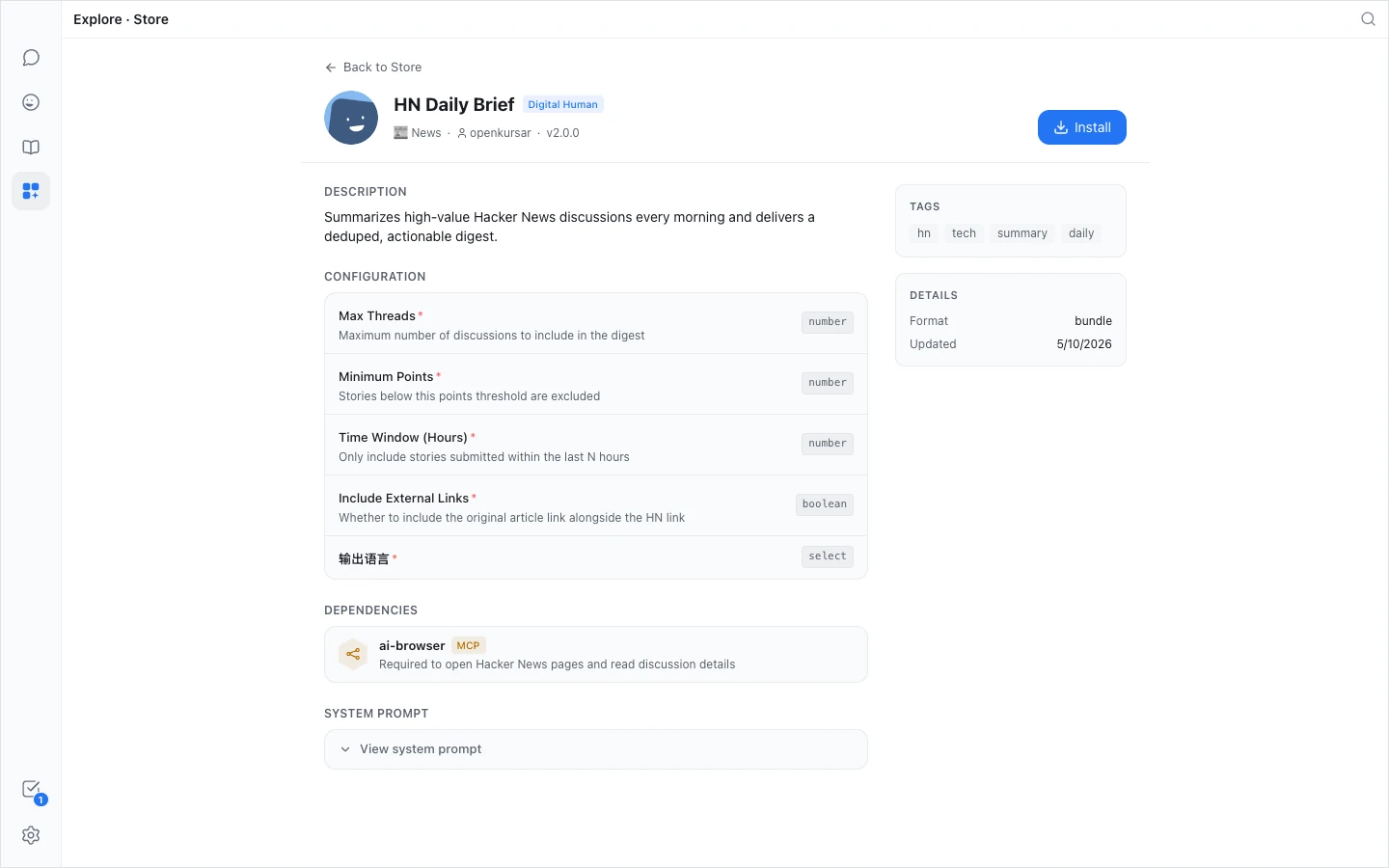
The skills it depends on are installed with it. If one of them fails, the whole install is rolled back, so you're never left with a half-installed Digital Human.
When it needs websites signed in
If the details list Required Logins, sign in to those websites in Halo's browser after installing so it can use them when it runs; see AI Browser.
Done
It appears under Digital Humans › My Digital Humans; if it has a schedule, it starts on time. To see it work right away, open it and click Run now.
Install a skill
- On the Skill tab, click a card; the details show the skill's Documentation.
- Click Add and choose Global (all workspaces) or a workspace. A global skill works in every workspace; if a workspace has a skill with the same name, the workspace's one wins.
- When the button says Added, click Use to open a conversation with the skill ready to use.
MCP servers
On the Store page, MCP entries are browse-only and their button says Coming Soon. To install an MCP server, open a Digital Human's Capabilities and settings › Tools & Resources › MCP Tools, click Browse MCP store, and install it into that Digital Human's workspace from there; see MCP servers.
Updates
About a minute after starting, and every 6 hours after that, Halo checks whether things you installed from the Store have new versions. It compares against the locally cached Store catalogue, which syncs only at startup, when you open the Store or when you click Refresh, so a new version shows up after the next sync.
When there is one, the details page button changes to Update to vX. Click it and choose one of three options in "Update available":
| Option | What it does |
|---|---|
| Update in place (Digital Humans) or Overwrite upgrade (skills, MCP) | Update in place: moves to the new version; anything you changed keeps your version, and you can switch each item to the author's version later in Work activity. Overwrite upgrade: replaces the content with the new version, including your edits to it; settings and data are kept |
| Keep current, install as a new copy | Installs the new version in another workspace and leaves the current one alone |
| Skip this version | Stops reminding you about this version |
How each Digital Human updates itself is set under its Capabilities and settings › Advanced › Upgrades › Upgrade strategy: by default it installs patch and minor updates automatically (major versions ask first); you can also choose Notify only or Manual.
You can't install or update while offline.
Share a Digital Human you made
- Export to a file: open the Digital Human, click ⋮ › Share at the top right, then Export to get a
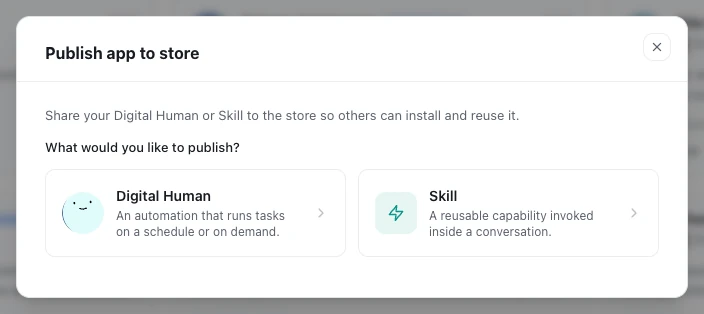
.dhpkgfile to send to a colleague. They install it with Create Digital Human › Import; see Import a file. Exporting works only in the desktop app. - Publish to the Store: click Publish App in the Store, or Share to Store under Share, and choose the Digital Human or skill to publish. Halo from the official site doesn't list it directly: it packs the file and opens a pre-filled GitHub issue form in your browser. Attach the packed file by hand; the pre-filled text includes the file's temporary path on your computer, which on Windows contains your user name, so delete that path before submitting. It then waits for manual review. Steps are in Publish to the Store.
For the .dhpkg format, see DHP protocol.
Troubleshooting
The install button says "Offline"
It says "You are offline. Connect to the network to install." Connect, then install.
"This app is already installed in the selected scope."
It's already installed in that workspace. Choose another workspace, or uninstall the existing one first.
Installation of "…" failed
Something went wrong during the install (often a skill it depends on couldn't be installed), and the whole install was rolled back. Read the reason after the colon and try again later; if it keeps failing, contact the author.
The details page says "Unsupported package format"
Halo doesn't support this entry's package format yet, so it can't be installed for now.
Next steps
- Create a Digital Human: build your own if the Store has nothing that fits.
- Private store: run a store inside your company.
- Publish to the Store: publish your Digital Human for others to use.