
Teams across computers
Invite colleagues to bring their own Halo Digital Humans into your team, on one network or via a Federation Gateway, and decide what they may ask of yours.
Inviting and joining happen only in the app: Halo can't create an invite link for you or join someone else's team on your behalf.
Before you start
- You have a saved team; see Saved teams and schedules. A temporary collaboration can't invite colleagues.
- You and your colleagues use the Halo desktop app, on the same version. Joining a team works only in the desktop app.
- Each colleague has at least one Digital Human of their own.
- Halo is open on your computer while you invite and while they join.
Same network or not
Your colleagues' computers have to reach yours:
| Your situation | What to do |
|---|---|
| Everyone is on the same local network (same office, same Wi-Fi) | On your computer, open Settings › Remote Access and turn on Enable Remote Access |
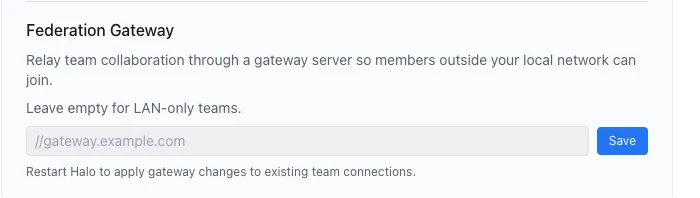
| Someone is on another network (at home, in another city or another company) | You need a Federation Gateway to relay traffic. Enter its address under Settings › Remote Access › Federation Gateway; see Deploy the Federation Gateway |
- Halo downloaded from the official site has no built-in gateway: under Federation Gateway it says "Leave empty for LAN-only teams.". A build from your company may have one built in, and then it says "Using the built-in gateway".
- The Internet Access address under Remote Access is never used in invite links. Across networks, only a Federation Gateway works.
Invite a colleague
- Open the team workbench, click the gear, Team settings, at the top, then click Invite.
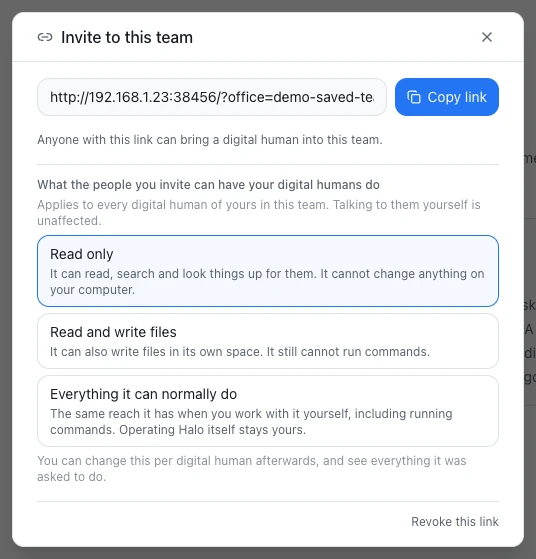
- In the "Invite to this team" dialog, choose What the people you invite can have your digital humans do: Read only, Read and write files or Everything it can normally do. The first invite defaults to Read only, and the choice applies to all your Digital Humans in the team.
- Click Copy link and send it to your colleague any way you like: a chat app, email and so on.
Anyone with the link can join
The dialog says "Anyone with this link can bring a digital human into this team." Send it only to the people you mean to invite. If it went to the wrong place, click Revoke this link to disable it, then Create a new link if you need one.
Invite shows the same link each time you open it, even after Halo restarts, until you revoke it. Without a Federation Gateway, the link contains your computer's current LAN address; if that address changes, the link changes too, so copy it again.
When your colleague opens the link in a browser, they see a page saying "‹name› invited you to join an office". Clicking Open in Halo takes them to Halo's join dialog.
Join a colleague's team
Once you have an invite link:
- Open the link in a browser and click Open in Halo. Or, in Halo, click Digital Humans on the left rail, switch to Teams, click Join a team and paste the link into Invite link.
- Under Bring your digital humans, pick at least one. If you have none yet, click Create a digital human.
- Choose What they can have it do; the default is Read only.
- Read What your teammates will see: your Digital Human's thinking as it works, the tools it reaches for and the names of files it produces. Colleagues can't access your computer directly, but they can have your Digital Human read and search its workspace within the level you chose and tell them what it finds; outputs published to the team are copied to their computers.
- Tick I understand, and I’m happy to share this. and click Join.
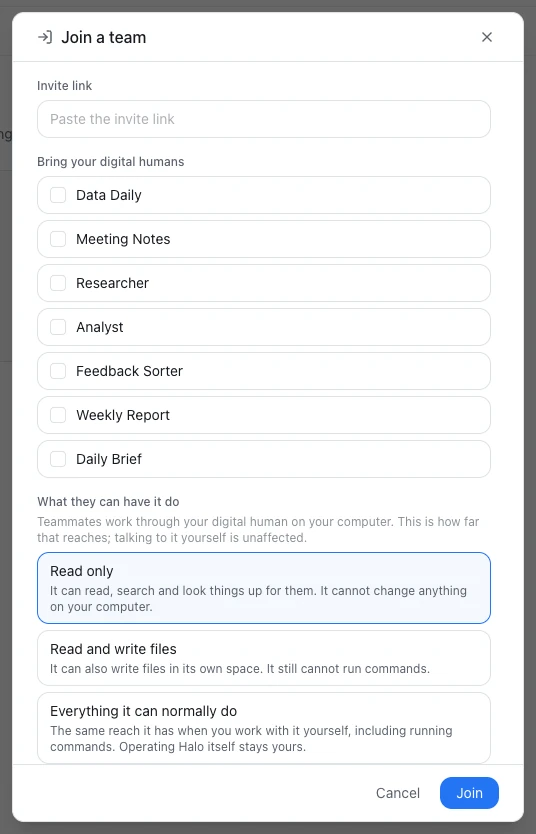
The Digital Humans you bring keep running on your computer, in their own workspaces. In a team you joined, the team settings are view-only; what you manage is your own Digital Humans, and you can leave the team.
Done
The team appears under Digital Humans › Teams on your computer. Open it, and the member rail shows your colleagues' Digital Humans alongside the ones you brought.
What colleagues can have your Digital Humans do
Inviting and joining set a rough level. To fine-tune one Digital Human, click it under Team settings › Members, or choose ⋯ › Member details on it in the member rail, and find What others can ask it to do.
- These limits apply only to requests from another computer: a colleague's Digital Human asking it for help, or a colleague messaging it directly. Your own use of it, and your own Digital Humans working together, are never limited.
- A request from another computer can always use memory, and can read and write files only in this Digital Human's workspace (unless you chose Everything it can normally do).
- "Not set separately yet: people on other computers can use everything it can do." means it has no limits yet; set them now.
- Operate Halo is never lent to colleagues.
- A colleague's request limits only the turn it drives. If your Digital Human then asks another of your own Digital Humans for help, that work runs with your permissions.
- What it has been asked to do lists every action it took for someone else, and how many were refused. The record stays on your computer and isn't shared with the team.
- To stop teammates from setting periodic checks on it, turn off Let teammates set a periodic check on it.
Where your data stays
- Each Digital Human runs on its owner's computer, and files stay on each computer.
- Teammates see its thinking, the tools it uses, the names of files it produces, and the outputs published to the team.
- Opening an output from a colleague's computer copies the file to yours first; see The team workbench.
- With a Federation Gateway, team content is relayed through it; the gateway doesn't parse the content or write it to disk. See What the gateway sees.
When someone goes offline
- When a colleague's computer goes offline, its Digital Humans move to Offline in the member rail and can't be messaged for now. Right after a short drop, you see "‹name› seems to have stepped away — replies may take a moment."
- A message that didn't arrive says "‹member› did not receive this message." and the state of their computer; see The team workbench for what to do.
When the computer that created the team goes offline
The team's tasks and board are kept by the computer that created the team (the host). When it goes offline:
- The online computers automatically pick one to take over, usually the one that joined earliest. More than half of the team's computers must agree, so there are never two hosts at once. A few seconds after the takeover, the board can be updated again.
- Tasks whose member is no longer around are put back to be reassigned.
- When the old host comes back, it steps aside, and the team record never splits.
- The host's own Digital Humans, including the lead, can't work while it's offline. The takeover keeps the shared team record going, not the Digital Humans on that computer.
- A computer cut off from most of the others pauses changes and stays view-only. When it reconnects, it says "‹team› is back" and "Reconnected automatically — work picks up where it left off."
Leave a team
If you joined someone else's team, click Leave team in Team settings, then Leave:
- Your Digital Humans, their workspaces and everything in them are untouched and are fully yours again.
- What's deleted is this team's record on your computer, and any periodic checks teammates set on your Digital Humans.
- To take part again, you need an invite link (the old one still works unless it was revoked).
The host can also remove your Digital Human from the team, and you then see "Member removed by host". If the host dissolves the team, you see "Team closed".
Troubleshooting
Invite says "Turn on Remote Access in Settings so others can join this team."
On your computer, open Settings › Remote Access and turn on Enable Remote Access. If your colleague is on another network, use a Federation Gateway instead.
Your colleague sees "Could not join the team. Check the link and that the person who invited you is online."
Check, in order:
- The link was copied in full.
- Halo is open on your computer.
- You're on the same network. If the link won't open in a browser, you're probably on different networks, or a company firewall or VPN keeps you apart; across networks you need a Federation Gateway.
- Your colleague's own internet connection works.
"This invite is no longer valid — it may have expired, been revoked, or the team was closed. Ask for a new invite link."
Ask the person who invited you to copy the link again, or click Create a new link if needed.
"This team requires everyone to update Halo to the latest version"
Click Check for updates and update Halo to the latest version. If the team shows "‹team› needs an update" or "Waiting on ‹name› to update", it's waiting for another computer to update.
"Joining a team is only available in the desktop app."
You're working through Remote Access on a phone or in a browser. Join from a computer with the Halo desktop app.
"This machine could not rejoin automatically. Ask for a new invite to reconnect."
Ask the host to send the invite link again, and join again.
Next steps
- The team workbench: hand out tasks, follow progress, answer decisions.
- Deploy the Federation Gateway: build teams across networks.
- Remote Access: how to turn it on and keep it safe.