
Schedules and triggers
Decide when a Halo Digital Human works: on an interval or at set times, only on China working days, on bot messages, by hand, or from an HTTP request.
Just tell Halo
Change the news assistant to run every weekday at 8 am.
Halo updates that Digital Human's schedule and tells you what it set. Ask in the workspace the Digital Human belongs to.
Before you start
- You have a Digital Human. If not, start with Create a Digital Human.
Ways a Digital Human starts work
One Digital Human can use several of these at once:
| Trigger | When it starts | Where to set it |
|---|---|---|
| Scheduled execution | Every so often, or at set times | Capabilities and settings › Trigger |
| Bot messages | Someone messages a bound bot | Bind a WeCom, Feishu or WeChat bot |
| Run now | When you click the button | Top right of the Digital Human's page |
| Reminders | A time you agreed on in its chat | Ask in the chat |
| HTTP trigger | Another program sends a request | Capabilities and settings › Trigger |
| File changes, webhooks | Files change in the workspace, or an outside system pushes data | YAML (advanced) |
Set a schedule
- Click Digital Humans on the left rail, open the Digital Human, and switch to Capabilities and settings.
- Under Trigger, turn on Scheduled Execution.
- Choose one way:
- By interval: pick one of the common intervals from 1 minute to 1 day, such as every 30 minutes or every 2 hours.
- By time: under Repeat, choose Every day, By week or By month, then set the Time (hour and minute). With By week, click Weekdays to select Monday to Friday in one go.
- Changes take effect immediately; there's nothing to save or restart.
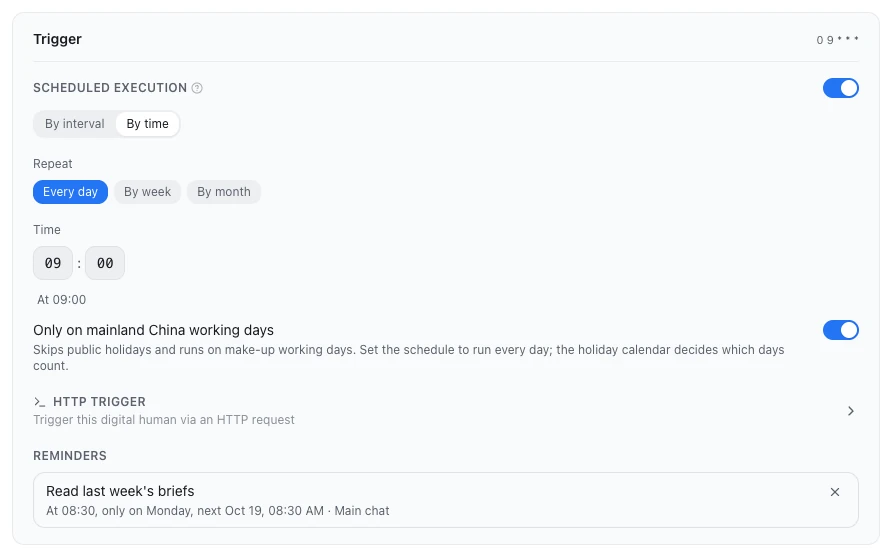
Only on mainland China working days
Turn on Only on mainland China working days to skip public holidays and still run on the weekend days that become working days. When you use this switch, set Repeat to Every day and let the calendar skip the holidays.
- The switch appears only when the interface language is Simplified Chinese or the computer's time zone is in China.
- The holiday calendar is downloaded from the internet. If it doesn't cover the current day, that run is skipped and Work activity says why.
"Weekdays" is not "mainland China working days"
Weekdays under By week just selects Monday to Friday and ignores holidays. Only on mainland China working days follows the official holiday and make-up working day schedule.
More complex timing rules (such as the last Friday of every month) can be viewed but not edited in the visual picker. Edit them in the YAML tab of Capabilities and settings; see the Digital Human spec reference.
Rules while it runs
- If a run is still going when the next time comes, that time is skipped, and Work activity notes how many were skipped.
- After Pause automatic tasks, all scheduled runs stop. Chats, reminders and manual runs keep working.
- While the Digital Human has a question waiting for your answer, scheduled runs that come due are skipped; once you answer, that piece of work finishes and the schedule carries on as usual.
Let bot messages wake it
Once a WeCom, Feishu or WeChat bot is bound to the Digital Human, a message to the bot gets it working, with no schedule needed. A Digital Human without a schedule shows "Manual / IM trigger" in the Trigger summary.
How to bind a bot: Message channels overview.
Run now
Click Run now at the top right of the Digital Human's page to start an independent run right away. The button is unavailable while a run is going or queued; it works even when automatic tasks are paused.
HTTP trigger
To let another program put the Digital Human to work:
- Open Settings › Remote Access and turn on Enable Remote Access. Until you do, the HTTP trigger says "Remote Access is off".
- In the Digital Human's Capabilities and settings › Trigger, expand HTTP Trigger.
- Choose an address type, Local, LAN or Internet, and click Copy curl. LAN appears only when the computer has a LAN address, and Internet only while Internet Access is running under Remote Access.
- Send that request from the other program. It must carry the Remote Access token, and it returns only when the run finishes.
The card shows the command in the desktop app only. For more on the API, see the HTTP API overview.
File changes and webhooks
A Digital Human can also run when files are created, changed or deleted, or when an outside system pushes data to Halo. Both are set up in YAML only, so they suit technical users; the fields are in the Digital Human spec reference.
- For a file trigger, set
pathto a folder inside its workspace: without it, the trigger also fires on changes in other workspaces Halo is watching. - Webhooks need Remote Access on.
Done
The Trigger summary shows the schedule you set, and the Digital Human's page header shows when the next run is.
Troubleshooting
It didn't run at the scheduled time
Check, in order:
- Is Halo running, and is the computer awake? A run that came due while the computer slept runs once when it wakes (even if several were missed); runs that came due while Halo was quit are not made up, so click Run now after opening Halo if you need one.
- Is the Digital Human Paused? Click Enable automatic tasks to resume.
- Is it waiting for your answer to a question? Answer it at the top of Work activity or in the Tasks panel.
- With "Only on mainland China working days" on, was that day a holiday, or did the calendar fail to download?
- Was the previous run still going?
More cases: A Digital Human did not run.
Next steps
- Reminders: agree on a time in a Digital Human's chat, and it reminds you then.
- Runs and management: see what each run did.