
Feishu Bot
Scan once with Feishu on your phone and Halo creates the Feishu app and connects a Digital Human for you. Lark and manual setup with an App ID work too.
You connect the bot yourself, in Halo and in Feishu on your phone; Halo can't scan or enter keys for you.
Before you start
- A Feishu or Lark account, with the Feishu (or Lark) app on your phone.
- Halo running. The bot stays connected through Halo, so it doesn't reply while Halo is closed or the computer sleeps; see Keep Digital Humans running.
- If your company's Feishu reviews new apps, an administrator must approve the new app before it works. Limit its availability to yourself or a few people, and most companies let it publish without review.
Scan to add
- Open Settings › Message Channels, find Feishu Bot and click Scan to add. The card says "Scanning creates the Feishu app for you — no developer console, no permission setup."
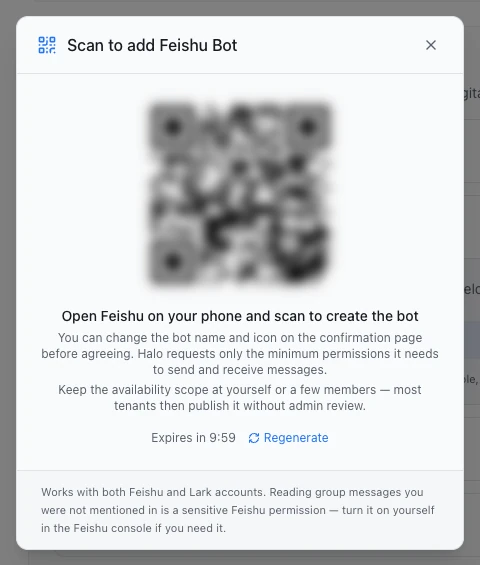
- In the "Scan to add Feishu Bot" dialog, scan the QR code with Feishu on your phone ("Open Feishu on your phone and scan to create the bot").
- A confirmation page opens on the phone. Before agreeing, you can change the bot's name and icon; keep its availability to yourself or a few people. Then agree.
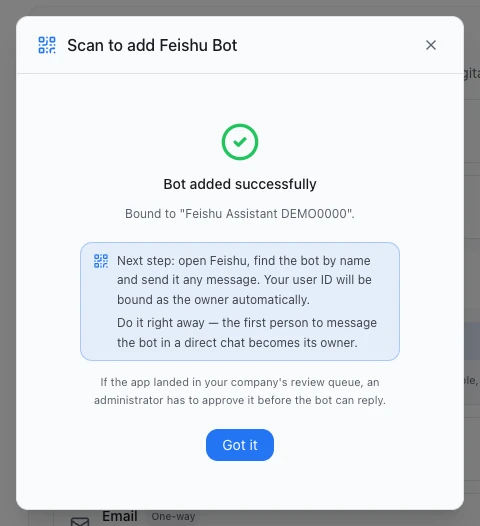
- Halo creates a new Digital Human, "Feishu Assistant …", binds it, and the dialog says "Bot added successfully".
- Do the next step right away: "Next step: open Feishu, find the bot by name and send it any message. Your user ID will be bound as the owner automatically." Click Got it.
- In Feishu, search for the bot by name and send it a direct message. It first replies "✅ You are now bound as the owner of this bot, with full access." and then answers you.
Message the bot right away
The dialog says "Do it right away — the first person to message the bot in a direct chat becomes its owner." Bots added by scanning have Permission Control on, so whoever messages it directly first becomes the owner. For what owners and guests can do, see Owner and guest permissions.
The Feishu app created by scanning asks only for the minimum permissions needed to send and receive messages. Both Feishu and Lark accounts can scan; Halo detects which one it is.
Done
The bot replies that you're bound as its owner, and the Digital Human answers whatever you send next. Under Settings › Message Channels, the dot next to the bot turns green and the Feishu Bot card header shows "1 connected".
Give it to an existing Digital Human
Scanning from Settings always creates a new Digital Human. To have an existing one answer the bot, either:
- open that Digital Human, switch to Capabilities and settings, and under Messages & Notifications › Bot Access click Scan to add a bot › Feishu bot, then scan as above; or
- pick another Digital Human under Backend in the bot's card, and confirm "Rebind this bot?".
Backend can also be a member of a team (listed under "Team: ‹team name›"). People in Feishu then reach that member, which can bring in its teammates, and these chats appear under IM conversations in the team workbench.
Use it in groups
- Add the bot to a Feishu group.
- @mention the bot when you talk to it. Require @mention in groups is on by default, so it answers only messages that @mention it.
- By default its group replies quote your message (Quote Reply (Group)).
To have it answer every message in the group, turn off Require @mention in groups. Feishu delivers messages that don't @mention the bot only if the app has the sensitive "all group messages" permission, which you turn on yourself in the Feishu developer console.
A bot with no owner yet does nothing in groups and only asks people to message it directly first to set an owner.
Reply settings
Expand the bot under Settings › Message Channels:
| Setting | Default | What it does |
|---|---|---|
| Backend | The Digital Human created by the scan | Who replies: a Digital Human, or a member of a team |
| Reply Scope | All messages | All messages: replies when @mentioned in groups and in direct chats; Group chats only: direct messages are declined; Direct messages only: group messages get no reply |
| Require @mention in groups | On | When on, it answers only group messages that @mention it |
| Quote Reply (Group) | On | Group replies quote the message they answer |
| Streaming | Off | When on, progress shows live in a Feishu card that's replaced by the final answer |
| Processing Notice | On | If there's no reply within 5 seconds, it first sends "已收到,正在处理…" ("Received, working on it…"). With Streaming on, the line appears inside the reply being written instead |
Changes save automatically. Require @mention in groups and Quote Reply (Group) take effect right away, without reconnecting.
Manual setup
If you've already built an app yourself in the Feishu developer console, you can connect it by hand. The app needs: the bot capability on; permissions to send messages as the bot, receive direct messages, receive group messages that @mention it, read files in messages, upload and download resources, read chat names, read basic contact info (to show direct-chat partners' names), and create and update cards (needed for Streaming); and a subscription to the "Receive messages v2.0" event (im.message.receive_v1), delivered over the long connection.
- Under Settings › Message Channels › Feishu Bot, click Manual setup.
- Enter the App ID (it starts with
cli_) and the App Secret. - Under Deployment, choose Feishu (China) or Lark (International).
- Pick a Digital Human under Backend and turn on Enabled.
- Check Permission Control; turning it on is recommended. See Owner and guest permissions.
The Feishu developer console follows Feishu's own steps; Halo has no guide for that part.
One Feishu app, one computer
Feishu delivers each message to only one connection. If the same app is connected in Halo on two computers, messages are split between them at random. Use each Feishu app on one computer only.
Limits
- One message holds up to 3,500 characters; longer replies are split into several messages.
- There's no reply window: it can reply or message people at any time.
- It receives images, files, video, voice and stickers.
- Contact and group names are read from Feishu automatically.
Troubleshooting
The card says "Connected · no messages received yet"
The connection works, but no message has arrived. Usually the app is still waiting for administrator approval, or the person messaging it is outside the app's availability. Send it a direct message in Feishu to check; the note disappears as soon as a message arrives.
"Authorization was declined in Feishu." after scanning
The confirmation page on the phone wasn't agreed to. Click Try again, scan again and agree on the confirmation page.
"QR code expired. Please regenerate."
Once the code expires, the dialog shows "Setup failed" with this message. Click Try again to get a new code.
No reply in a group
- Make sure you @mentioned the bot.
- Reply Scope isn't Direct messages only.
- The bot has an owner. If not, message it directly first.
For more, see Bot not replying.
Next steps
- Owner and guest permissions: decide what others in a group can have the Digital Human do.
- Message channels overview: let the Digital Human message contacts on its own.
- The team workbench: see the Feishu chats a team member is handling.