
Capabilities and settings
Each group of a Halo Digital Human's Capabilities and settings tab: identity, trigger, parameters, model and capabilities, tools, messages, advanced, YAML.
Open a Digital Human and switch to Capabilities and settings. The menu on the left lists the groups and doubles as a status board: unsaved changes, empty required fields and the schedule. At the top right you can switch between Settings and YAML.
After you change something that affects chats, Quick restart appears at the top. It deletes no data, but it stops any work in progress so that chats pick up the new settings.
Identity & Instructions
| Setting | What it does |
|---|---|
| Name, Description | Shown in the directory and in teams; teammates read the description when they hand out work |
| System Prompt | Its job description: what to do each time, how, and when to ask you. For long ones, click Expand editor |
Click Save when you're done, or Reset to discard changes.
Trigger
| Setting | What it does |
|---|---|
| Scheduled Execution | Runs it on an interval or at set times; see Schedules |
| Only on mainland China working days | Skips public holidays; see Run only on mainland China working days |
| HTTP Trigger | Copy a command that lets another program start it; see HTTP trigger |
| Reminders | Reminders set in its chats; cancel them here. See Reminders |
With no schedule, the summary reads "Manual / IM trigger".
Runtime Parameters
This group appears only when the Digital Human declares settings (for example, one from the Store that needs keywords to watch). It reads these values on every run. Empty required ones don't stop it; it just works without that information.
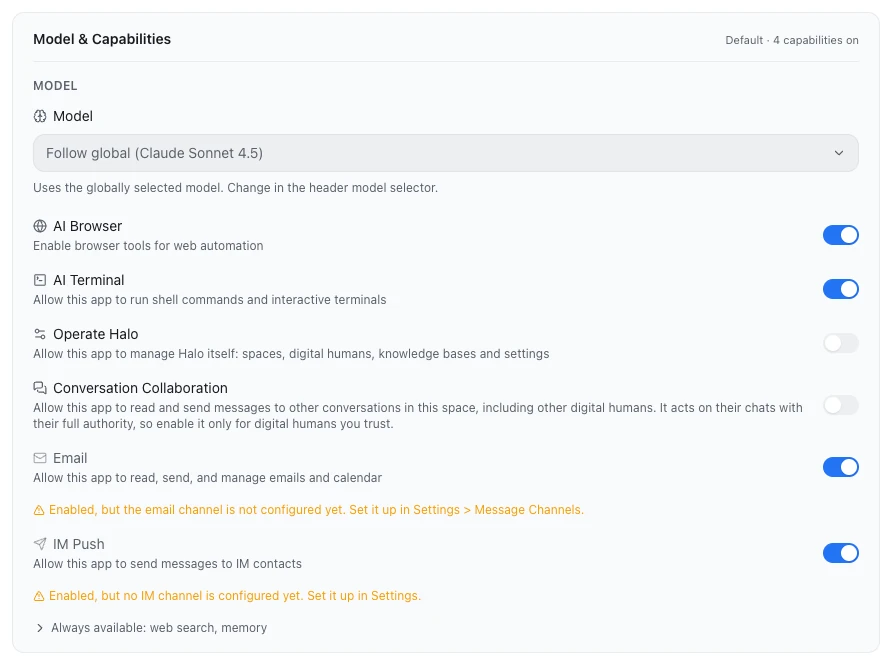
Model & Capabilities
Model
By default it uses Follow global, the model chosen next to the message box. You can give it a model of its own; click Reset to global to go back. If the account behind its model is removed, it follows global again.
Capabilities
| Switch | Default | What it does |
|---|---|---|
| AI Browser | On | Opens web pages, clicks and fills in forms; see AI Browser |
| AI Terminal | On | Runs commands in a terminal; works only on macOS and Windows |
| Operate Halo | Off | Manages workspaces, Digital Humans, knowledge bases and settings; see Operate Halo |
| Conversation Collaboration | Off | Reads other conversations in the same workspace and can message them; it acts in those conversations with full authority, so turn it on only for Digital Humans you trust |
| On | Reads, sends and organizes mail and checks the calendar; set up the mailbox under Settings › Message Channels first. See Email and calendar | |
| IM Push | On | Messages the bot's contacts on its own; connect a bot first. See Notifications and proactive push |
Web search and memory are always available, with no switch. Operate Halo is never given to guests in a bot chat. When a switch is on but its channel is missing (for example Email with no mailbox set up), a yellow note appears below it; click it to go straight to the settings.
Tools & Resources
| Part | What it does |
|---|---|
| MCP Tools | The connections it declares and their status. You can Enable for this digital human or Disable for this digital human (affects only this one), Add dependency, Browse MCP store, New connection and Test connection |
| Available Skills | The workspace's and global skills. Choose existing, New skill, Import or Browse skill store; changes affect the other Digital Humans in the same scope |
| Knowledge | Tick the knowledge bases it may read, or Add knowledge and Manage |
| Required Logins | The websites it uses; click one to open it in Halo's browser and sign in |
The rule: chats inherit the workspace's connections (except ones explicitly disabled), while independent runs use only the connections it declares. If a declared connection isn't usable, that run shows Not started; see A run shows "Not started".
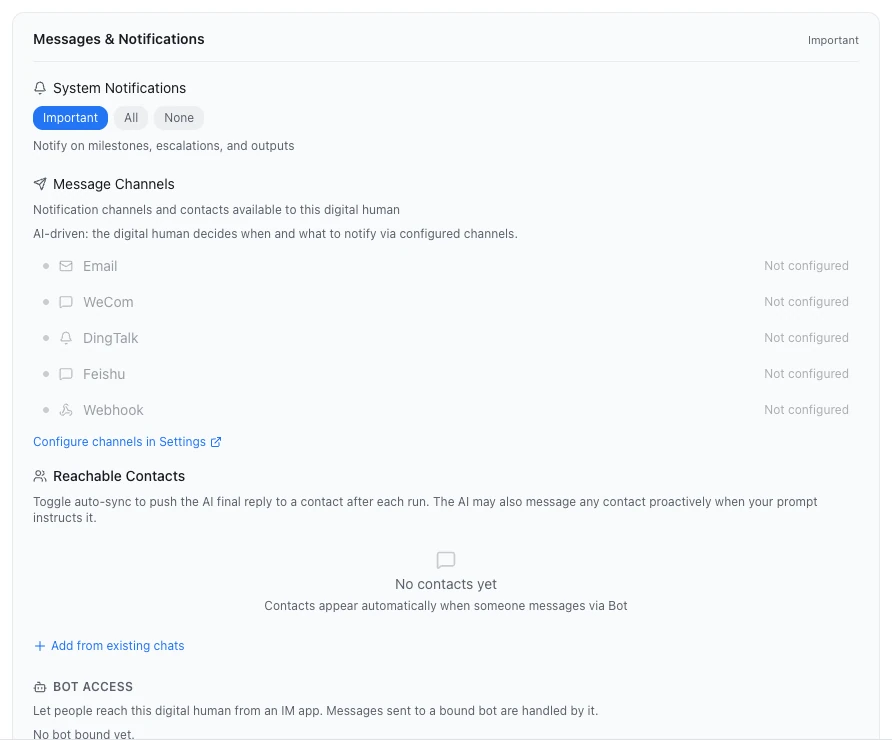
Messages & Notifications
| Part | What it does |
|---|---|
| System Notifications | Important (the default: milestones, questions and outputs), All (every run result) or None |
| Message Channels | The notification channels that are set up; the Digital Human decides when to send what |
| Reachable Contacts | People and groups who have messaged its bot; rename or remove them, or turn on Auto-sync run result |
| Bot Access | Scan to add a bot, Bind an existing bot or Unbind; see Message channels overview |
Advanced
| Part | What it does |
|---|---|
| Upgrades | Every Digital Human has it, but it only does something for ones installed from the Store. Upgrade strategy can be Auto (silent patch/minor) (the default; major versions ask first), Notify only or Manual; you can also click Check for upgrades |
| App Spec | Type, version, triggers, the workspace folder, and where its memory files are |
| Memory | Its own memory; with Use workspace memory on, it can also read what the workspace has learned (read-only) |
| Runtime Control | Restart Agent: reloads the prompt and settings; chat history is kept. It does the same as ⋮ › Restart agent at the top right of the page |
| Danger zone | Clear Memory (deletes its memory and run transcripts; Work activity entries stay), Uninstall, Clear all conversations (memory and reminders are kept) |
YAML
The YAML tab edits the whole Digital Human definition; click Save when done, or Reset or Export. Its type can't be changed. Settings the visual editor can't handle (such as complex time rules, file-change and webhook triggers) are edited here. For the fields, see the Digital Human spec reference.
Next steps
- Schedules and triggers: have it start on time.
- Runs and management: see what it did and answer its questions.