
Runs and management
See what each run of a Halo Digital Human did, answer its questions, run or pause it by hand, export it for a colleague, or uninstall it.
Just tell Halo
What did the news assistant do in its last run?
Pause the news assistant for now.
Run the news assistant now.
Halo checks that Digital Human's status and tells you, or pauses or runs it for you. Ask in the workspace the Digital Human belongs to.
All your Digital Humans
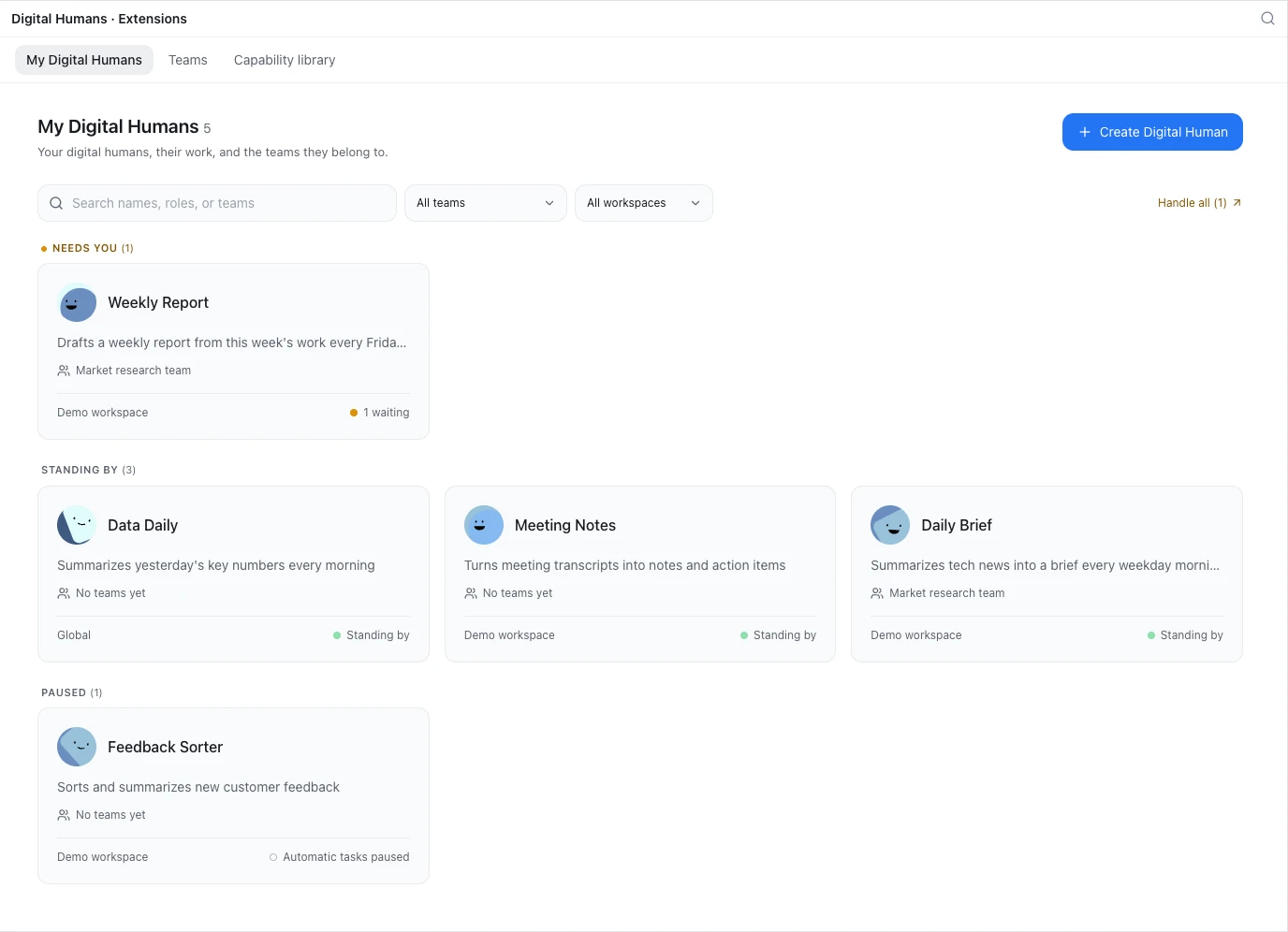
Click Digital Humans on the left rail. My Digital Humans shows every Digital Human, grouped by status: Needs you, Running, Standing by and Paused.
- Search with "Search names, roles, or teams", or filter with All teams and All workspaces.
- When any Digital Human is waiting for you, Handle all (N) appears. Click it to open "Needs my attention" and see everything waiting for your decision in one list.
- Uninstalled Digital Humans are under Removed at the bottom of the page.
One Digital Human's page
Open a Digital Human. The top shows its name, status, schedule, and last and next run. At the top right:
- Chat: talk to it (Digital Humans installed globally don't have this button).
- Run now: start a run right away.
- Pause automatic tasks / Enable automatic tasks.
- Browser: open the websites it uses, to sign in ahead of time.
- ⋮: Restart agent, Share, Export configuration, Move to another workspace, Clear Memory, Uninstall.
Below are four tabs: Work activity, IM sessions (only with a bound bot), Participating teams and Capabilities and settings.
See what it did
Work activity is the Digital Human's record. Things waiting for you are at the top, and Recent activity is below. Use Activity source to show only teams, independent executions, conversations or version updates.
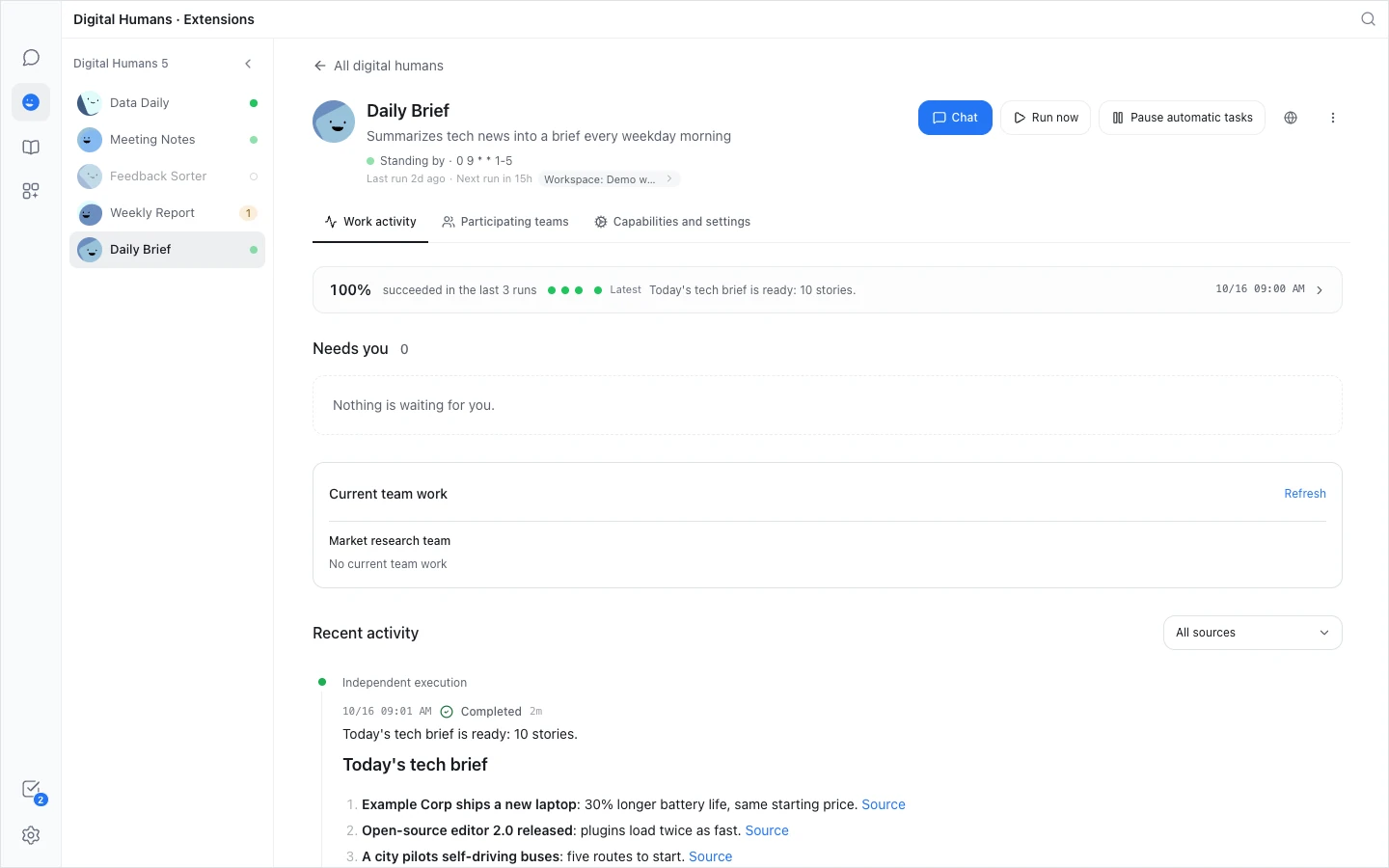
Each run entry shows the result, the duration and the tokens used, and you can Download the files it produced:
- Click View process to see the whole run. While it's still running, you can add guidance in "Add a message to guide this run...".
- A failed run has Continue; click it to have the Digital Human carry on.
- Not started means a connection it needs isn't ready (not installed, turned off, waiting for sign-in, or failing). Follow the prompt to Tools & Resources to fix it.
- While a run is going, the top shows "Independent execution in progress", with Stop this execution.
Answer its questions
When a Digital Human needs your decision, it pauses that piece of work and shows a question card:
- Click an option, or type your decision in "Type your response...".
- Click Submit and continue this work. Only this piece of work continues; its other automatic tasks are unchanged.
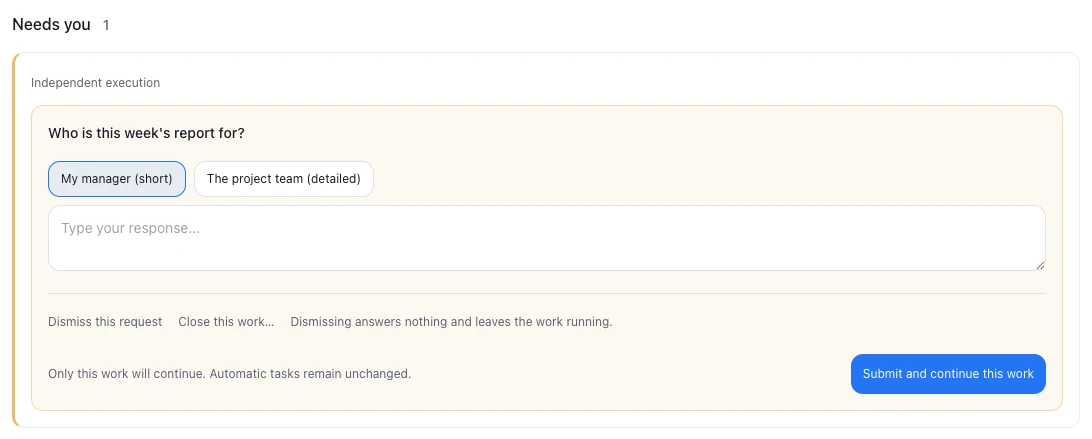
To skip it, click Dismiss this request (the work keeps going with no answer). To end that piece of work, click Close this work….
Question cards appear in several places, and answering in any of them is the same: the top of Work activity, "Needs my attention", the Tasks panel, and system notifications. If the Digital Human has a bot, the question is also sent to you (the bot's owner) in a direct chat; just reply there in plain words, no commands needed.
While a Digital Human has a question waiting for you, its scheduled runs are skipped until you answer.
Run now and pause
- Run now works even when the Digital Human is paused, but not while a run is going or queued.
- Pause automatic tasks stops scheduled and event-triggered runs and drops queued automatic work. A run in progress, chats and reminders are not affected. Click Enable automatic tasks to resume.
Stopped after repeated failures
After 5 failed runs in a row, Halo stops the Digital Human's automatic tasks. It shows up under Needs you with "Stopped itself after repeated failures". Check why the recent runs failed, fix it, then click Resume work.
Chat with it
Chat opens a new chat with it in its workspace; earlier chats are in the Digital Humans group of the Conversation list. Once a bot is bound, the IM sessions tab shows what people said to it in WeCom, Feishu or WeChat (read-only). Click Continue in client to carry a conversation on in Halo.
Export and import
- Give it to a colleague: click ⋮ › Share and choose Export to save a Digital Human package you can send by hand. Your colleague imports it under Create Digital Human › Import.
- Export only the configuration: click ⋮ › Export configuration to download the Digital Human's YAML.
- Publish to the Store: choose Share to Store under Share; see Publish to the Store.
Uninstall and delete permanently
Click ⋮ › Uninstall. Its work history is kept and the skills it brought are removed. You can open it later under Removed and click Reinstall App to bring it back.
Clicking Delete Permanently under Removed deletes its record, its conversations and its whole data folder, memory included. This can't be undone.
Halo doesn't ask again when you ask it to delete
If you tell Halo "delete the news assistant", it deletes it permanently right away, without the uninstall-then-confirm steps of the interface.
Limits
| Item | Detail |
|---|---|
| Concurrent runs | Up to 10 independent runs at once across Halo; extra runs queue. One run per Digital Human at a time |
| Run length | No time limit; click Stop this execution if needed |
| Repeated failures | Automatic tasks stop after 5 failed runs in a row |
| Run process | The newest 200 runs of each Digital Human keep the full process; older ones keep only the result |
| Work activity | Kept for one year |
Done
You can see each run's result in Work activity, and after you answer a question the card shows "Answer received" and the original work carries on.
Troubleshooting
A run shows "Not started"
A connection it declares (such as an MCP server) isn't usable. Follow the card to Tools & Resources and install, turn on or sign in to that connection.
More cases: A Digital Human did not run.
Next steps
- Capabilities and settings: every setting of a Digital Human, group by group.
- Keep Digital Humans running: how to set up your computer and Halo so Digital Humans work on time.