
Email and calendar
Set up one mailbox in Halo and your Digital Humans can check, search, send and sort your mail. Add a CalDAV URL and they can manage your calendar too.
Just tell Halo
Check today's unread mail and sort it by priority.
The Digital Human reads today's unread messages in your inbox, goes through each one, and gives you a list ordered by urgency.
Send this report to zhangsan@example.com.
The Digital Human writes the email, attaches the report, sends it right away, and tells you who it went to. It does not ask you to confirm before sending.
Prerequisite: Settings › Message Channels › Email is set up as described below, and you are chatting with a Digital Human (any one will do; a fresh install comes with the starter Digital Human 「Halo AI 数字人模板」). An ordinary workspace conversation has no email tools.
Before you start
Only Digital Humans can use email and calendar. A Digital Human's Email capability is on by default, but it only works once you have set up the mailbox in Settings.
| Where | Can it use email? |
|---|---|
| Chatting with a Digital Human in Halo | Yes |
| A Digital Human running on its own, e.g. on a schedule | Yes |
| Chatting with a Digital Human through a WeCom, Feishu or WeChat bot | Yes. Guests have extra limits, see Email permission in bots |
| An ordinary workspace conversation | No, there are no email tools there |
Three more things to know:
- One Halo has one mailbox, shared by all its Digital Humans. You can't give each Digital Human its own mailbox.
- Halo signs in with your email address and an app password. It does not support web sign-in such as "Sign in with Google".
- You set up the mailbox yourself in Settings. Halo can't fill it in for you.
Get an app password
Most providers don't let third-party apps send or read mail with your normal sign-in password. First turn on IMAP and SMTP access on your provider's website, then create a password just for apps. Providers call it different things: app password, authorization code, client-specific password. This page says app password.
| Mailbox | What you need | Where you usually get it |
|---|---|---|
| QQ Mail, NetEase 163 / 126 and similar | Authorization code | In the webmail settings, after turning on IMAP/SMTP |
| Gmail | App password | Your Google Account's security settings; 2-Step Verification usually has to be on first |
| Outlook / Microsoft 365 | App password, or what your admin requires | Your account's security settings; ask IT for a work account |
| Company mail | App password or client-specific password | Ask IT for the outgoing server address and port, and check the incoming rule below |
You do this on your provider's website; Halo can't help with this step. The usual steps:
- Sign in to your webmail in a browser.
- Open the settings or account security page and turn on IMAP and SMTP.
- Create an app password and give it a name (such as
halo). - Copy it right away. Many providers show it only once.
Also note your provider's SMTP (outgoing) server address and port. You need them in the next step.
Sending and reading must use the same server address
Halo only asks for the outgoing (SMTP) server. To read mail, it connects to port 993 on that same address (IMAP, encrypted), with the same username and password. There is no separate field for an incoming server. If your provider uses different addresses for incoming and outgoing mail, Halo can send but can't read.
The app password is stored in plain text on your computer in ~/.halo/config.json, and the app shows it only as ***. Using an app password instead of your sign-in password means you can revoke it on the provider's website if anything goes wrong.
Set up the mailbox in Halo
Click Settings at the bottom of the left nav rail and choose Message Channels.
Scroll down to the Email card marked One-way ("Send notifications via SMTP email") and click it to expand.
Turn on Enabled.
Fill in the fields. Those marked * are required.
Field What to enter Notes SMTP Host * Your provider's outgoing server address smtp.gmail.comin the box is only an example, not a default. Halo also reads mail from this addressSMTP Port * The port your provider gives The form starts at 587with Use SSL/TLS offUse SSL/TLS Turn on when your provider says port 465 Turning it on changes the port to 465; turning it off goes back to587. A port you typed yourself staysUsername * Your full email address, such as zhangsan@example.comMail the Digital Human sends comes from this address Password * The app password from the previous step The box shows "App password" Default Recipient * Usually your own address Used only for notification emails, see Get notifications by email. When a Digital Human sends mail for you, you name the recipient in the chat There is no Save button; changes save automatically. The card header shows Configured with a green dot.
A Halo provided by your company may already have the SMTP host, port and other fields filled in. Then you usually only need to enter the username and password.
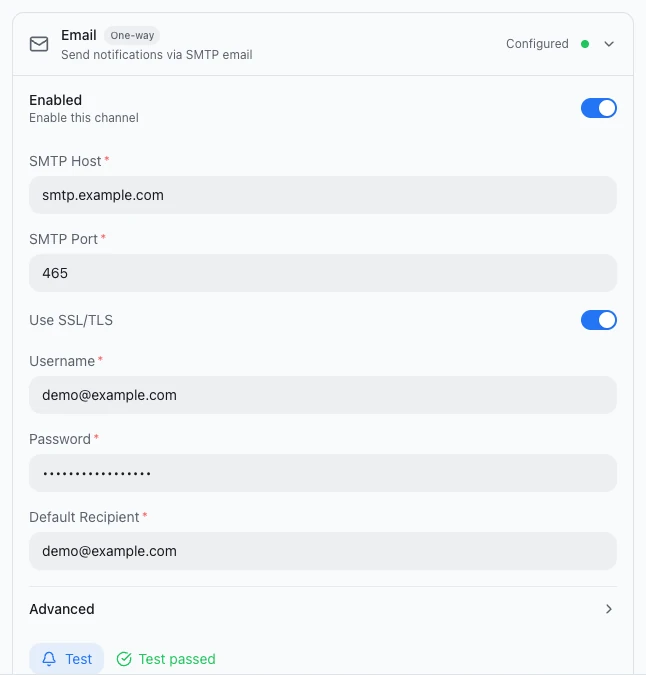
Test the connection
- Click Test at the bottom of the Email card. The button shows Testing....
- A green Test passed means Halo can sign in to the outgoing server with this account.
- If it fails, the error text appears in red next to the button. Look it up under Troubleshooting.
Test only checks that Halo can sign in to the outgoing (SMTP) server. It does not send an email. It doesn't check reading mail (IMAP) or the calendar (CalDAV) either.
- While Enabled is off, the Test button is grayed out.
- If the port is empty or not a valid number, you see "Please enter the SMTP port" and the test doesn't run.
To check that reading works too, say this in a Digital Human's chat:
List all the folders in my mailbox.
When the Digital Human lists Inbox, Sent and your other folders, reading works as well.
Turn on Email for a Digital Human
Every Digital Human's Email capability is on by default, so you usually don't need to change anything. To check it or turn it off:
- Click Digital Humans in the left nav rail and open the Digital Human under My Digital Humans.
- Go to Capabilities and settings and find the Model & Capabilities group.
- Look at the Email row ("Allow this app to read, send, and manage emails and calendar"). When the switch is on, the Digital Human can use email.
If the row is dimmed and shows the yellow hint "Enabled, but the email channel is not configured yet. Set it up in Settings > Message Channels.", Enabled on the Email card is still off. Click the hint to go straight to Settings.
To keep a Digital Human away from your mailbox, turn its Email off. If Quick restart appears after the change, click it so ongoing chats pick up the new setting.
Done
Say "List all the folders in my mailbox." in a Digital Human's chat. When it returns the folder list, the mailbox and the Digital Human are both set up.
What a Digital Human can do
Once set up, a Digital Human can use these email tools in chats and in runs on its own. Just say what you want in plain words; you don't need the tool names.
| Ask it to | Tool | Notes |
|---|---|---|
| List mail | email_list | Inbox or any folder, newest first; unread only if you like; up to 100 per call |
| Read a message | email_read | Body, sender, recipients and the attachment list |
| Search mail | email_search | By subject, sender, recipient and date range, Chinese keywords included; not full-text; up to 50 results |
| Send a new email | email_send | CC and BCC, and attachments from the computer running Halo |
| Reply | email_reply | To the sender or to everyone, quoting the original |
| Forward | email_forward | Includes the original message and attachments, with an optional note on top |
| Move | email_move | To another folder, such as Junk or one you created |
| Mark | email_mark | Read, unread, flagged or unflagged, several at once |
| Delete | email_delete | Moves to Trash by default, so you can recover it; can also delete permanently |
| List folders | email_folders | All folders with their message and unread counts |
| Download an attachment | email_attachment_download | Saves the attachment as a file on the computer, ready to read or process |
Things you can say:
- "Find mail from zhangsan@example.com in the last two weeks and put the ones with attachments in a table."
- "Mark all of today's unread mail as read."
- "Reply to this email and say I'll get back to them by Friday."
No confirmation before sending or deleting
When a Digital Human sends, replies to, forwards or permanently deletes mail, Halo shows no confirmation dialog, and sent mail can't be recalled. For an extra safeguard:
- Have it send a few test emails to yourself first, before it writes to anyone else.
- Write in the Digital Human's System Prompt: "Before sending any email, show me the recipients and the text and wait for my OK." The AI follows this on its own judgment; it is not an enforced block.
Manage your calendar (CalDAV)
With a CalDAV URL, a Digital Human can also view, create and delete events in your calendar. CalDAV is the standard calendar protocol, and many mail providers' calendars support it.
- On the Email card in Settings › Message Channels, expand Advanced.
- In CalDAV URL, enter the calendar address from your provider's help pages or your IT team.
- You can use placeholders:
{host}becomes the SMTP Host and{email}becomes the Username. The example in the box ishttps://{host}/dav/users/{email}/calendars/default/. - Leave TLS Ciphers empty (it shows "Auto (system default)") unless IT gives you a specific value.
The calendar signs in with the same username and password. Once the URL is filled in, the Digital Human gets three more tools:
| Ask it to | Tool | Notes |
|---|---|---|
| View events | calendar_list | Events in a date range |
| Create an event | calendar_create | Title, start and end time; optional description, location and attendees; a reminder 15 minutes before by default |
| Delete an event | calendar_delete | Deletes the given event |
While CalDAV URL is empty, these three tools don't appear. Test doesn't check the calendar; to confirm it works, ask the Digital Human "What's on my calendar this week?"
Get notifications by email
The same Email card is also a one-way notification channel. When a Digital Human finishes work or runs into something important, it can decide on its own to send a notification email to the Default Recipient.
- Notification emails come from "Halo" with the subject
[Halo] <notification title>. - Notifications only need the Email card to be enabled. The Digital Human's Email capability switch doesn't matter for them.
- Notifications go only to the Default Recipient. To send to anyone else, the Digital Human uses the email tools above.
For how notification channels differ from pushing into a chat, see Notifications and proactive push.
Email permission in bots
Once a Digital Human has a bot, you can also ask it to handle mail from WeCom, Feishu or WeChat. It uses the mailbox set up in Halo.
- Owner: the same as in Halo; all email tools are available.
- Guests: no email by default. To let guests of a WeCom or Feishu bot use email, open Settings › Message Channels › (the bot) › Permissions › Permission Control, set an owner, turn on Guest Access under Guest Permissions, then turn on Email in Guest Allowed Tools.
- WeChat bot: has no Permission Control. Everyone who messages it counts as owner and can use email.
Guests with email can touch your mailbox
With Email on for guests, any guest in the chat can have the Digital Human read your mail and send mail in your name. Turn it on only in chats you trust.
For how owners and guests are told apart and how to allow other tools, see Owner and guest permissions.
Process mail on a schedule
Halo has no "new email arrives" trigger. To have a Digital Human handle mail regularly, give it a schedule so it wakes up and checks the mailbox at set times.
- Open the Digital Human's Capabilities and settings › Identity & Instructions and write what to do each time in System Prompt. For example: "Check today's unread mail, summarize it by priority, and list customer emails separately."
- Go to Trigger › Scheduled Execution and turn on the switch. The default is once every hour.
- For a fixed time, choose By time, for example Repeat Every day at 8:30. To run on working days only, also turn on Only on mainland China working days.
- Click Run now at the top of the page to try it once, and check the result in Work activity.
- Every run uses the model and costs tokens. The shorter the interval, the higher the cost.
- Halo has to be running, and the computer on, when a run is due.
- To have it send you the summary, see Notifications and proactive push.
For more schedule options, see Schedules and triggers.
Troubleshooting
The Digital Human says it has no email tools
- You may be asking in an ordinary workspace conversation. Email works only in a Digital Human's chat; open one under Digital Humans and ask there.
- Enabled is off on Settings › Message Channels › Email.
- This Digital Human's Email is turned off, see Turn on Email for a Digital Human.
- The person asking through a bot is a guest, see Email permission in bots.
Test passed, but the Digital Human can't read mail
Test only checks sending. Reading uses port 993 on the same address. Check that:
- IMAP is turned on on your provider's website. Many providers have only SMTP on by default.
- Your provider uses the same address for incoming and outgoing mail. If not, Halo can't read this mailbox for now. For company mail, ask IT.
Test failed with Invalid login, Authentication failed or 535
The username or password is wrong. Make sure Username is your full email address and Password is the app password, not your sign-in password. If needed, create a new one on the provider's website.
Test failed with ETIMEDOUT or ECONNREFUSED
Halo can't reach the server. Check that SMTP Host and SMTP Port match what your provider gives, and that no network or firewall blocks that port.
The error says self signed certificate or unable to verify the first certificate
Halo doesn't check the certificate chain on mail connections, so this error usually means the encryption setting and the port don't match. Port 465 usually needs Use SSL/TLS on; port 587 usually has it off.
The Test button is grayed out
Enabled on the Email card is still off. Turn it on, then click Test.
No calendar tools, or the calendar error CalDAV … failed: HTTP …
No calendar tools means Advanced › CalDAV URL is empty. An HTTP error usually means the address is wrong. Ask your provider or IT for the exact CalDAV address, and check what it looks like after the placeholders are filled in.
I changed the mailbox settings, but the Digital Human still uses the old ones
On the Digital Human's page, click More › Restart agent, then send another message.
Next steps
- Notifications and proactive push: have a Digital Human tell you when work is done, by email or in a chat
- Owner and guest permissions: decide who in a group can have the Digital Human use email and other tools
- Schedules and triggers: have a Digital Human tidy your mailbox every day