
Office documents
Have Halo create and edit Word, Excel, PowerPoint and PDF files with its built-in document skills. Nothing to install; files land in your workspace folder.
Just tell Halo
Turn this data into an Excel sheet, plus a Word summary and a 5-slide deck
Halo reads the data you give it, makes an .xlsx, a .docx and a .pptx file, saves them in the current workspace's folder, and names the files in its reply.
Prerequisite: none. The document skills and their runtime come installed with Halo.
Make a new document
Halo ships four document skills. Say which file you want and the AI picks the matching skill by itself; you don't have to name it.
| File you want | Skill | What it can do |
|---|---|---|
Word (.docx) | docx | Create reports, memos, letters and contracts; read and summarize; replace text and fill templates |
Excel (.xlsx, .csv, .tsv) | xlsx | Create a sheet from data or from scratch; read and summarize; edit cells, formulas and formatting; clean up messy data; convert between formats |
PowerPoint (.pptx) | pptx | Create a deck; read slide text and notes; edit slides in an existing deck; fill templates |
PDF (.pdf) | pdf | Read text; merge, split and rotate pages; add a watermark; fill forms; create a PDF; inspect pages, metadata and form fields |
The skills run on a runtime bundled with Halo. You don't need to install Office, Node.js, npm or Python.
- Open the workspace the file belongs in. To keep the file with a project, switch to that project's workspace first.
- In the message box, say what file you want, how long, and in what style, for example: "Make a 5-slide deck on next quarter's team plan, in a clean style." Press Enter to send.
- Wait for the AI to finish. An Office file takes longer than a text reply. You can keep adding details while it works; the AI sees them right after its current step.
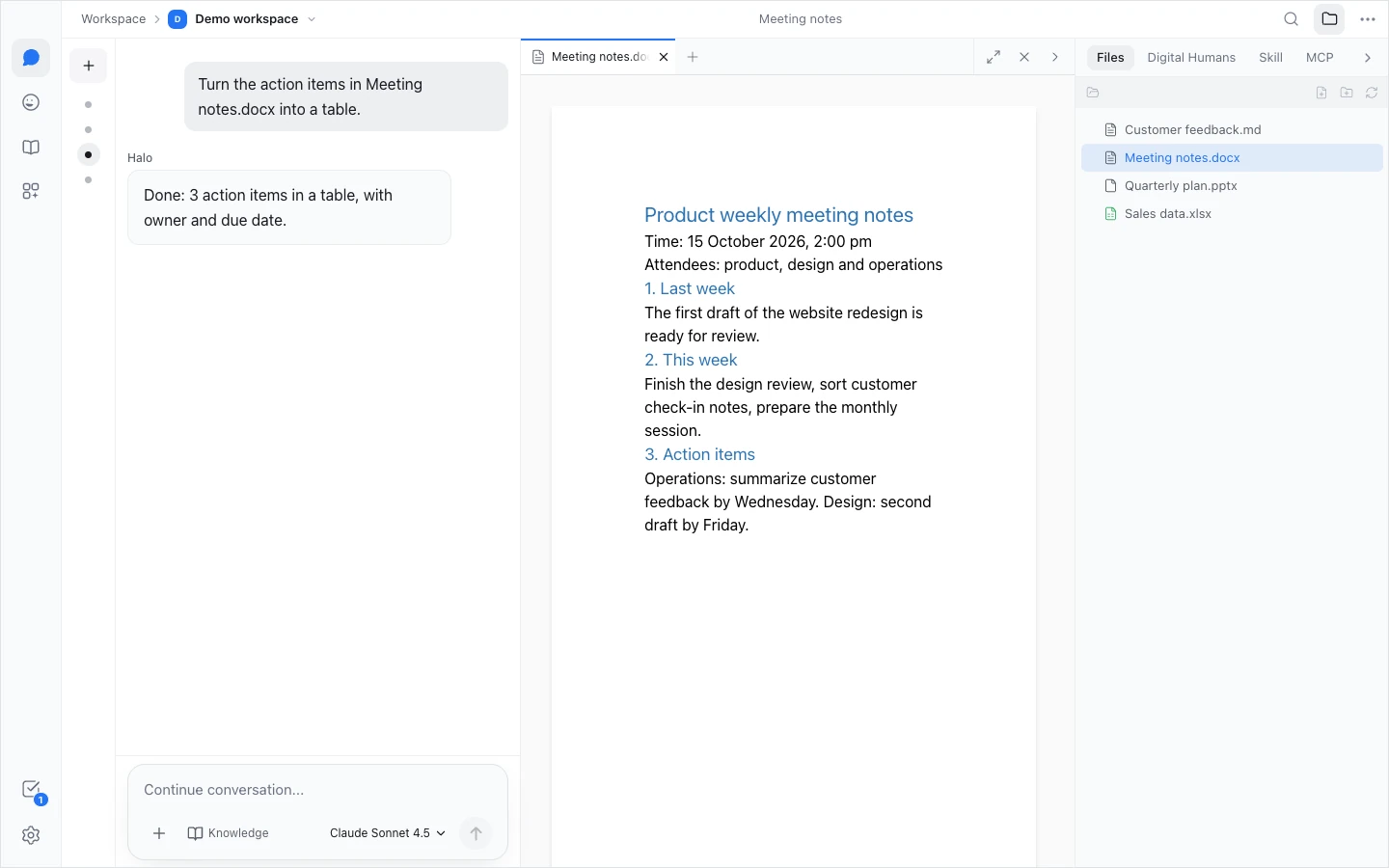
- The reply names the new file. Click the name and the file opens in the canvas on the right. To change something, just keep talking: "Turn slide 3 into a table."
If you give no style requirements, the skills follow their built-in design rules: Word gets a consistent heading hierarchy and styled tables, a deck uses one of five design styles throughout, and Excel gets a colored header row that stays frozen at the top.
Done
The reply names the new file, and clicking it shows the content in the canvas (except decks, see Preview in the canvas). Double-click it in the Files list to open it in your system's default app, such as Word, WPS or PowerPoint.
Edit an existing document
Give the AI the file first, then say what to change.
- Hand the file over in one of three ways:
- Click + › Files and folders in the message box and pick the file on your computer. On desktop the AI reads the file where it is; nothing is copied.
- If the file is already in the workspace, type
@and part of its name, then pick it from the Files group. Or drag it from the Files list on the right into the message box. - In the browser or the Android app, + › Files uploads the file into the workspace folder (up to 100 MB per file).
- Say what to change, for example: "Replace every 'Party A' in this contract with 'Example Co.'" or "Add a totals row at the bottom of this sheet."
- To keep the original, say so: "Save it as a copy, don't overwrite the original."
All the ways to attach files and use @ are on Files and images.
Where files go
Documents the AI makes are saved in the current workspace's folder by default:
| Workspace | File location |
|---|---|
| A workspace you created | That workspace's working directory (the default location or the custom folder you chose when creating it) |
| Halo Workspace | A dedicated folder Halo keeps for it. Open it with Show in Folder on the Halo Workspace card on the Manage workspaces page |
To find a file:
- Click the file name in the reply to open it in the canvas.
- Click Open workspace resources in the header and look in the Files tab. The list refreshes by itself, so new files show up without a manual refresh. Click to preview, double-click to open with the system app.
INFO
The NEW / MOD badges in the Files list only track files the AI writes with its file-editing tools. Office documents are produced by scripts the skills run, so they may not carry a badge and are not counted in "Changed N files" under the reply. Use the file name in the reply to find them.
How the list, canvas tabs and right-click menus work is on Files and the canvas.
Preview in the canvas
Office documents open read-only in the canvas. To change one, tell Halo, or open it in the system app and edit it yourself.
| File type | What the canvas shows | Notes |
|---|---|---|
Word (.docx) | The document rendered page by page | Read-only |
Excel (.xlsx, .xls) | A table with sheet tabs at the bottom; merged cells are kept | Read-only. Shows at most 20,000 rows × 256 columns per sheet; beyond that you see "Large sheet — showing a partial view" |
PDF (.pdf) | Desktop: the built-in PDF viewer. Browser and Android app: page buttons, 25 %–400 % zoom and Fit width | Read-only |
PowerPoint (.pptx) | No rendering; shows "Presentation preview is not supported yet" | Click Open in external application (desktop) or Download |
Old formats .doc, .ppt | Not opened in the canvas | Open directly in the system app (download in the browser) |
.docx, .xlsx, .xls, .pptx and .pdf files over 25 MB are not previewed; open them in the system app. In the browser and the Android app, these documents always have a download button in the Files list.
Built-in document skills
docx, xlsx, pptx, pdf and the diagnostic office-runtime-check are global skills: every conversation and every Digital Human in every workspace can use them.
- You find them under Digital Humans › Capability library › Skills, with the Bundled badge on the card. Set the source filter to Built in to see only built-in skills.
- To call one by hand, type
/docx,/xlsx,/pptxor/pdfin the message box. Whether the/menu appears depends on the AI Agent Engine; see Commands and shortcuts. - If you don't need a skill, click Uninstall in the card's More menu. It stays uninstalled after you restart Halo. To get it back later, reinstall it from the Uninstalled group.
Documents from Digital Humans
Digital Humans can use these skills too. That suits files delivered on a schedule, such as a weekly .xlsx sales summary or a monthly .docx report.
Make me a Digital Human that every Monday at 9 am turns last week's sales data into an Excel sheet, writes a Word summary, and sends both to zhangsan@example.com
Halo asks you a few questions first (such as where the data comes from), then sets up the Digital Human. The files it makes are saved in the folder of the workspace it lives in.
- To send files by email, set up a mailbox in Settings › Message Channels › Email first; then the Digital Human can attach the files. See Email and calendar.
- A Digital Human connected to a WeCom, Feishu or WeChat bot can send the file to you in the chat. Only files inside the Digital Human's workspace folder or the system temp folder can be sent. See Message channels overview.
- When other people reach a Digital Human through a bot, by default they can only read files, not run commands, and the document skills need to run commands to produce a file. To let guests get documents, allow Change files and run commands in Permission Control. That option is marked as risky, so think it through before you turn it on.
For the full setup, see Create a Digital Human; for timing, see Schedules and triggers.
Limits and tips
The AI cannot see how a document looks when rendered; it checks its work by reading the text back and validating the file structure. Open important files once in Word, WPS or PowerPoint before you send them on.
| Situation | Limit | What to do |
|---|---|---|
Old .doc, .xls, .ppt files | The skills can't read or write them (.xls can only be viewed in the canvas) | Save them as .docx, .xlsx or .pptx in Office, then give them to Halo |
| Word tracked changes and comments | Can't accept, reject or write tracked changes; reading or adding comments is unreliable | Ask for a clean edited copy with a list of what changed |
| Excel formulas | There is no recalculation engine. The AI computes each formula's result as it writes it; after it changes inputs in an existing sheet, some results refresh only when you open the file in Excel | The AI tells you which formulas need a refresh |
Excel charts, pivot tables, macros (.xlsm) | Editing a workbook that has them would drop them, so the AI asks you first; it can't create charts in a sheet | Save a copy without them, or have the AI prepare the data table and insert the chart in Excel yourself |
| Charts in decks | Common types such as bar, line and pie charts are supported | Check the chart slides once |
| Scanned PDFs | No text layer, so no text can be read | The AI asks you to turn on Text Recognition under + › Capabilities; see Text recognition |
| Encrypted PDFs | Can't be opened | Give the password or an unencrypted copy |
| Rewording text inside an existing PDF | Not supported in place | Have the AI extract the text and produce a new PDF or Word file |
| Tables in PDFs | Extraction returns text in reading order; table structure is rebuilt on a best-effort basis | Provide the original spreadsheet if you have it |
| Digitally signed PDFs | Any change invalidates the signature | Check whether you still need the signature before editing |
Chinese PDFs are generated with a Chinese font bundled with Halo, so they don't depend on the fonts installed on your computer.
Troubleshooting
A deck in the canvas shows "Presentation preview is not supported yet"
The canvas in 3.0 can't render PowerPoint yet. Click Open in external application to view it in PowerPoint, WPS or Keynote; in the browser, click Download.
The canvas shows "Unable to preview this document" or "Unable to preview this spreadsheet"
If the detail line says File too large to preview, the file is over 25 MB. If it says "The file may be corrupt or in an unsupported format.", the file may be damaged or in the wrong format. Either way, click Open in external application or Download.
Halo says it can't open an old .doc / .xls / .ppt file
The document skills only handle the newer formats. Save the file as .docx, .xlsx or .pptx in Office or WPS, then give it to Halo.
Making a document fails with an error about a missing module
Tell Halo "Run /office-runtime-check". It checks each library in the bundled runtime and reports the result. Only the document skills are affected; chat keeps working.
Halo replies with text instead of making a file
The matching skill may have been uninstalled. Look under Digital Humans › Capability library › Skills and reinstall it from the Uninstalled group. You can also say outright in your message: "Make it a .docx file."
Next steps
- Files and the canvas: manage the files in a workspace and get more out of canvas tabs and viewers.
- Skills: install more skills from the Store, or set up skills for one workspace.
- Files and images: every way to give the AI files, folders and images.