
Memory
Halo's memory is the notes the AI keeps for itself. A workspace's conversations share one memory, and each Digital Human has its own. Set, tidy or clear it.
Just tell Halo
Remember: weekly reports always use tables.
Halo writes this preference into memory and tells you it did. When you start a new conversation in the same workspace, it reads that note from the start. Say it in a Digital Human's chat, and it goes into that Digital Human's own memory.
To make it forget something, say:
Forget the server address I gave you.
Halo removes that entry from memory.
Halo has two kinds of memory: workspace memory, shared by the ordinary conversations in a workspace, and Digital Human memory, one per Digital Human. In both, the AI decides what to record and how to organize it; you don't have to maintain anything. The Chinese UI of 2.x translated "Memory" as 内存; since 3.0 it is 记忆.
Workspace memory
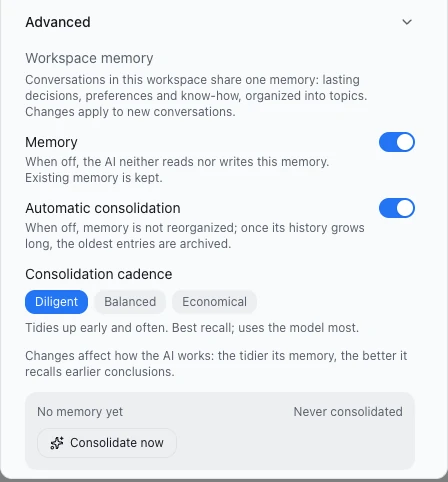
All ordinary conversations in one workspace share one memory. The settings describe it as: "Conversations in this workspace share one memory: lasting decisions, preferences and know-how, organized into topics. Changes apply to new conversations."
- It is on by default and needs no setup. The memory files are created the first time they are needed.
- The AI receives the memory ahead of the first message of a new conversation: the current state (up to 8 KB), the number of history entries with the newest 3 titles, and the topic index. Later in the conversation it reads and edits the memory files itself as needed.
- A resumed conversation does not get the memory again.
- Notes about "work in progress" may come from another conversation. The AI is told to verify them before relying on them.
- A conversation working on one knowledge base's documents does not load workspace memory.
Where to set it
- Click the workspace selector at the top of the conversation and choose Manage workspaces.
- Hover over a workspace card and click ⋮ (More) › Edit. The Edit Workspace dialog opens.
- Expand Advanced › Workspace memory and change what you need. Each option is explained under Memory settings.
- Click the dialog's Save. Nothing takes effect until you click Save, and changes apply to new conversations.
If the dialog shows "Memory settings could not be loaded. Close and reopen this dialog to try again.", the controls stay disabled until the settings load, so reopen the dialog. A failed save shows "Memory settings could not be saved. Please try again."
The Halo Workspace has workspace memory too, also on by default. Its card menu only offers Show in Folder, so there is no settings screen for it. To change its memory settings, ask the AI:
Just tell Halo
Turn off memory for this workspace.
Halo switches off Memory for the current workspace and keeps the existing memory files. You can also say "Consolidate this workspace's memory now".
Prerequisite: turn on Operate Halo in the composer under + › Capabilities. The AI can ask you to turn it on but cannot turn it on itself.
Digital Human memory
Each Digital Human keeps one long-lived memory of its own. Its schedules and automatic runs, chats, IM conversations and team work all read and write that one memory. It has three parts:
| Part | What it holds |
|---|---|
| Current state | A summary of how things stand, optionally followed by sections per item, recurring patterns and errors |
| History | A newest-first timeline; each entry says which run or conversation wrote it |
| Topics | Lasting knowledge organized by subject; see Topics |
- At the start of each run or new chat, the Digital Human receives its current state (up to 16 KB), the number of history entries with the newest 8 titles, and the topic index.
- After each automatic run (except runs that did nothing), a run record is saved: trigger, outcome, duration, token usage and up to 2,000 characters of output.
- The Digital Human is told to record state that stays true about the work, such as "order submitted, awaiting payment", not its own position, such as "I am on page 3".
Where to set it: Digital Humans › select a Digital Human › Capabilities and settings › Advanced (collapsed by default) › Memory. It is the same panel as the workspace Memory settings, but each change here saves immediately; there is no Save button.
Use workspace memory: this switch sits in the same panel and is off by default. When on, the Digital Human can read the topics its workspace has learned, in every conversation it has. It cannot change workspace memory; it records what it learns in its own memory.
| Situation | Result |
|---|---|
| The Digital Human's own Memory is off | The switch is disabled, with the hint "Turn memory on to use this." |
| Workspace memory is off, or the workspace has no topics yet | Turning it on gives the Digital Human nothing to read |
| On, and the conditions are met | Only topics are shared, not the workspace's current state or history; applies to new conversations |
Two more points:
- In Capabilities and settings, under "Always available: web search, memory", the Memory line always reads "Built-in · always on". It does not change when you turn memory off under Advanced › Memory. The Advanced switch is what counts.
- Members the AI creates for a temporary collaboration have no memory. They get one once the team is kept as a long-lived team.
Memory settings
Workspaces and Digital Humans use the same settings panel.
| Setting | Default | What it says |
|---|---|---|
| Memory | On | "When off, the AI neither reads nor writes this memory. Existing memory is kept." |
| Automatic consolidation | On | "When off, memory is not reorganized; once its history grows long, the oldest entries are archived." Disabled while Memory is off |
| Consolidation cadence | Diligent | Three options, below. Disabled while Memory is off |
| Consolidation cadence | Hint in the app |
|---|---|
| Diligent (default) | "Tidies up early and often. Best recall; uses the model most." |
| Balanced | "Tidies up when memory has grown noticeably." |
| Economical | "Tidies up only when memory is large. Uses the model least." |
With Automatic consolidation off, the hint becomes "Consolidation is off: the cadence sets how long history grows before its oldest entries are archived." The panel footer reads: "Changes affect how the AI works: the tidier its memory, the better it recalls earlier conclusions."
The status box shows the current state of the memory:
| Shown | Meaning |
|---|---|
| "{size} · {count} topics" | Size counts memory.md plus all topic files |
| "No memory yet" | There is no memory yet |
| "Last consolidated {time}" or "Never consolidated" | When the last consolidation happened |
| "Last attempt could not reorganize memory; old history was archived instead." | The last consolidation failed; only archiving was done |
| "Last attempt did not complete." | The last consolidation did not finish |
Consolidate now starts a consolidation at once, ignoring thresholds and intervals. While it runs, the button shows "Consolidating…" and the status refreshes every 3 seconds. Possible notices: "Already consolidating." "Nothing to consolidate yet." (no memory file yet) "Could not start consolidation." Consolidate now still works while Memory is off; it tidies the existing files.
Consolidation
Consolidation is Halo having the AI tidy a memory in the background: it merges duplicates, moves lasting knowledge into topics, trims the current state and archives old history. You get no notification and no task-panel entry; only the status box changes.
Consolidation uses the model and costs tokens
The AI does the consolidating, so it uses tokens (the units model usage is billed in). A Digital Human's consolidation uses its own model. Automatic consolidation of a workspace uses the model of the conversation that triggered it; Consolidate now uses the global default model. To spend less, choose Economical or turn off Automatic consolidation.
When it runs automatically: Halo checks after every finished turn in a workspace conversation, and after every Digital Human run, chat, IM or team turn. Consolidation starts when any threshold below is crossed and the minimum interval since the last attempt has passed.
| Cadence | Total memory file size | Current state | History entries | Minimum interval | History entries kept when trimmed |
|---|---|---|---|---|---|
| Diligent (default) | 100 KB | 8 KB | 30 | 1 hour | 10 |
| Balanced | 200 KB | 16 KB | 60 | 4 hours | 20 |
| Economical | 400 KB | 32 KB | 120 | 12 hours | 40 |
The current-state threshold is capped: 8 KB for workspace memory, 16 KB for Digital Human memory.
- One memory is consolidated only once at a time. If another conversation or run is using the memory, consolidation waits, at most 5 times, then goes ahead.
- Consolidation works on a copy, so the memory stays usable meanwhile. Anything written in the meantime is merged into the result.
- The result is checked before it is applied: current state and history are both present, every topic is described, no topic was silently dropped, and topic content did not shrink by more than 40%.
- If consolidation fails, history is trimmed only if it is over its limit, and the next automatic attempt waits until
memory.mdhas grown by 20%. - With Automatic consolidation off, memory is not reorganized. Only when history or file size goes over its limit are the oldest entries archived, down to the count in the last column.
- With Memory off, nothing runs automatically.
What the AI records, and what it doesn't
The AI records only what future conversations will need. Its instruction says, word for word: "Most conversations record nothing."
| Records | Does not record |
|---|---|
| Decisions and their reasons | Passwords, keys, tokens and other credentials or secrets |
| Lasting preferences | A log of every reply |
| Verified project facts | Its own progress on the current task |
| Reusable procedures and lessons from failures | Team board tasks, roles and status |
Memory is reference material only: it cannot override current instructions or give the AI extra permissions. The AI checks facts that may change at their source before relying on them.
Topics
Topics are Markdown pages the AI writes, one subject per page. Each page starts with its name and a line saying when to read it. Folders can serve as categories.
- At the start of a new conversation, the AI sees a topic index. The index is rebuilt from the files every time, within 6,000 characters: the top level is always listed, and deeper levels are folded into a count of further pages.
- There is no limit on the number or size of topics.
- The AI is told to search before creating a page, keep one subject per page, and link instead of copying.
- Halo has no screen for browsing topics. The status box shows how many there are; to read them, open the memory files.
Where the memory files are
Memory is plain Markdown. You can open and edit the files by hand; changes reach new conversations.
| Memory | Location |
|---|---|
| Workspace memory | memory.md and the memory/ folder in ~/.halo/spaces/<WORKSPACE_ID>/.halo/ |
| Halo Workspace memory | ~/.halo/temp/.halo/ |
| Digital Human memory | ~/.halo/spaces/<WORKSPACE_ID>/.halo/apps/<DIGITAL_HUMAN_ID>/, with memory.md, memory/ and the run logs in runs/ |
On Windows, ~/.halo is %USERPROFILE%\.halo.
- Workspace memory is always in Halo's data folder, never in your project folder, even when the workspace uses a custom folder. Show in Folder on the workspace card opens the working directory, not the memory.
- To find a Digital Human's memory, open Capabilities and settings › Advanced › App Spec › Memory Files, which shows the path; click Reveal in Finder to open the folder. The link has this name on Windows and Linux too. Desktop only Remote web and Android show no path, and the link does nothing there.
- After a Digital Human moves to another workspace, its memory folder stays where it was, and its personal memory remains available.
- Folders such as
run/,archive/and.snapshots/insidememory/are maintained by the system; the AI's writes to them are refused. - Before each consolidation, Halo snapshots
memory.mdand the topics. The first snapshot is kept for good, plus 3 rotating ones, and old versions ofmemory.mdalso go intoarchive/. There is no restore button; to restore, copy the files back. This also means that after you ask the AI to forget something, the old text may still be in these files.
Clear a Digital Human's memory
Only a Digital Human's memory can be cleared in one step. There are two places to do it:
- At the top of the Digital Human's page, choose More › Clear Memory, then click Clear Memory in the "Clear this digital human's memory?" dialog.
- Go to Capabilities and settings › Advanced › Danger zone › Clear Memory. After the warning "This will permanently delete all memory files (memory.md and run history). The app will start fresh on its next run.", click Confirm Clear.
Clearing cannot be undone
Clearing permanently deletes memory.md, everything in memory/ (topics, run records, archives, snapshots) and the run logs in runs/, snapshots included. Files in the workspace are not touched. With Operate Halo on, you can also ask the AI to clear it; it does so at once without asking again.
How other actions affect memory:
| Action | Memory |
|---|---|
| Clear all conversations | Kept |
| Uninstall a Digital Human | Kept |
| Delete permanently an uninstalled Digital Human | Deleted with its data folder |
| Delete a workspace | Workspace memory is deleted with it |
Workspace memory has no clear button. If you don't want it, turn Memory off (the files are kept). To remove its contents, edit or delete the memory files by hand.
Guests and requests from other computers
Memory is always open to restricted requests, regardless of the capability switches:
- guests in IM
- requests from a colleague's computer to a team member (see Teams across computers)
- guests your team answers in IM
These requests can read and write the Digital Human's own memory (memory.md and topics), but never its run records, archives or snapshots. They can read the workspace's topics only when both Use workspace memory and workspace memory are on. What the app says:
- Guest capability settings: "Memory is always available and not affected by these settings. File access is limited to this workspace."
- A team member's "What others can ask it to do": "A request from another computer can always use memory, and its file access is limited to this workspace."
The AI is told not to reveal sensitive memory content to guests. That is an instruction to the AI, not a filter, so don't let a Digital Human record anything guests must not see. History written for a guest is marked as coming from a guest. Permission settings are on Owner and guest permissions.
Codex SDK and DeepSeek dsh engines
On these two experimental agent engines, memory works, but there is no write lock and no enforced read-only boundary (for example, on the workspace memory a Digital Human reads); only the AI's instructions hold it back. The default engine and the Halo SDK enforce both.
How is memory different from a knowledge base?
Memory is the notes the AI writes for itself as it works. A knowledge base holds documents you collect and manage, which the AI searches when needed.
| I want to… | Use this |
|---|---|
| Have Halo remember a preference or project convention | Memory: say "Remember: …" |
| Have Halo forget something | Memory: say "Forget …", or edit the memory files |
| Have the AI answer from a set of documents I collected | Knowledge base |
| Let a Digital Human use what the workspace's conversations learned | The Digital Human's Use workspace memory |
| Use a file in this one conversation only | Send the file in the conversation |
Next steps
- Workspaces: one workspace per project keeps each memory separate
- Knowledge base: have the AI answer from your own documents
- Capabilities and settings: the page where Digital Human memory settings live, explained item by item