
Capabilities
The Capabilities switches under the composer's + decide which tools Halo's AI can use in a conversation, such as Web Control, AI Terminal and Operate Halo.
Capabilities are optional tool packs built into Halo. Turn one on and the AI gains a new kind of skill in that conversation, such as working in web pages, opening a terminal or managing Halo for you. When the AI needs a capability it asks you to turn it on, but it can't turn one on itself.
Curious what an AI desktop agent can do on your own computer? See AI desktop agent.
Where to find them
Click + in the composer (tooltip "Add files, context and capabilities"). The panel has three groups: Add, Context and Capabilities. The switches are in the Capabilities group. Click one to turn it on or off.
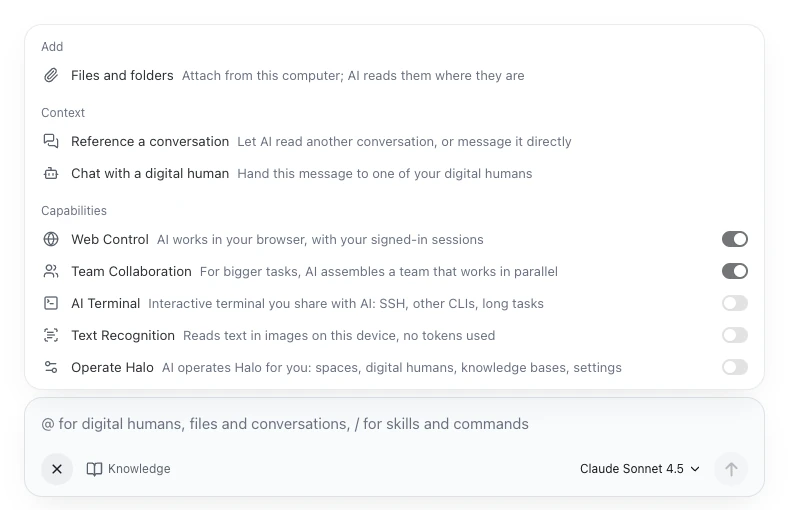
- While the AI is replying, the + panel shows only the Capabilities group, and the tooltip reads "Capabilities".
- The switches belong to each conversation. Another conversation can have a different set.
- In a chat with a Digital Human, the + panel has no capability switches. A Digital Human's tools are set in its own settings; see How this differs from a Digital Human's switches.
- Halo opened through Remote Access can flip these switches too.
A capability that's off takes up one summary line in the conversation. A capability that's on brings its tools and usage notes into the conversation, so every message uses a few more tokens. Turn on only what the task needs.
The five switches
| Switch | Description in the app | On first use | Details |
|---|---|---|---|
| Web Control | AI works in your browser, with your signed-in sessions | On | AI Browser |
| Team Collaboration | For bigger tasks, AI assembles a team that works in parallel | On | Digital Human teams |
| AI Terminal | Interactive terminal you share with AI: SSH, other CLIs, long tasks | Off | AI Terminal |
| Text Recognition | Reads text in images on this device, no tokens used | Off | Files and images |
| Operate Halo | AI operates Halo for you: spaces, digital humans, knowledge bases, settings | Off | Let the AI operate Halo |
"On first use" means the state before you have ever flipped a switch by hand. What happens after that is under Defaults and when changes apply.
Web Control
With Web Control on, the AI can open pages, click, fill in forms, take screenshots and download files in Halo's built-in AI Browser. Sites you've signed in to in the AI Browser stay signed in for the AI. Pages open on the computer that runs Halo.
Team Collaboration
With Team Collaboration on, the AI can assemble a temporary team for a bigger task, act as its coordinator and let the members work in parallel. When you ask, it can keep that team, or hand the work to a team you've already saved. How teams split, hand over and report back is on Digital Human teams.
AI Terminal
macOS and Windows onlyWith AI Terminal on, the AI can open a persistent interactive terminal that you and the AI both see and type into. It suits signing in to a server over SSH, driving other command-line tools and long-running jobs. The Linux version has no such switch. See AI Terminal.
Text Recognition
With Text Recognition on, the AI can read the text in images on your computer, in English and Simplified Chinese. Images aren't uploaded, and recognition itself uses no tokens. It extracts text only; it doesn't describe what an image shows.
When you send images to a model that can't see images, Halo turns Text Recognition on for that conversation automatically, and it works for that very message. Details: Files and images.
Operate Halo
With Operate Halo on, the AI can use Halo's own API to manage workspaces, conversations, Digital Humans, teams, knowledge bases, message channels and some settings, and it can switch models. General settings such as theme and language stay out of its reach. What it can and can't do is on Let the AI operate Halo.
Caution
Operate Halo is off on first use. Once it's on, the AI can act on any workspace, not just the current one, and nothing asks you to confirm first. Only for a few actions that can't be undone does Halo tell the AI to check with you first. Turn it off when you're done. No Halo tool call asks for per-call confirmation; see Tool permissions.
Defaults and when changes apply
| Situation | What happens |
|---|---|
| You've never flipped a switch | New conversations start with Web Control and Team Collaboration on, the rest off |
| You've flipped switches before | New conversations use the set you last flipped by hand |
| You reopen an older conversation | It keeps its own set |
| You flip a switch while the AI is replying | The current reply finishes as is; the change applies from your next message |
| You send images to a model that can't see images | Halo turns Text Recognition on for that conversation, effective for that message |
| You upgraded from 2.x | Team Collaboration is added to your saved set once; if you turn it off afterwards, it stays off |
When the AI asks for a capability
When a task needs a capability that's off, the AI neither pretends it can do the task nor turns the capability on. Instead it:
- Opens the + panel and briefly highlights that switch. The panel doesn't take keyboard focus, so whatever you're typing isn't interrupted.
- Asks you in one line to turn it on, then stops and waits.
Turn the switch on and send another message, and the AI can use the capability. For example, you say:
SSH into the test server and check the latest error logs.
If AI Terminal is off, AI Terminal is highlighted in the + panel and the AI asks you to turn it on. Turn it on, reply "done", and it carries on.
The AI can ask this way even in the middle of a reply. Operate Halo doesn't change this: turning capabilities on or off isn't part of the API that Halo opens to the AI, so only you can flip them.
Tools that need no switch
These tools are in every ordinary conversation. They aren't in + › Capabilities and need nothing turned on:
| Tool | What the AI can do | Details |
|---|---|---|
| Web search | Search the web and return results, without relying on the model's own search | — |
| Halo docs lookup | Read Halo's official docs to answer "how do I do this in Halo" | Docs for AI tools |
| Digital Human management | Create, edit, schedule, run now, pause and delete Digital Humans; install or uninstall skills | Create a Digital Human |
| Cross-conversation tools | Read other conversations in the same workspace, hand work to one, or ask it a question and wait for the reply | Conversations that work together |
On top of these, the AI has the basic tools of its AI engine, such as reading and writing files and running commands.
Turn some built-in tools off in Settings
Desktop onlyWeb search and Halo docs lookup have no switch. Digital Human management and the cross-conversation tools can be turned off in Settings › Advanced › Built-in MCP Extensions. In every UI language, this panel's descriptions and every row name except Digital Humans are shown in English:
| Switch (as shown) | What it controls | Default |
|---|---|---|
| Digital Humans | Digital Human management tools | On |
| Cross-Conversation Interop | Master switch for the cross-conversation tools: list, read and message other conversations in the same workspace | On |
| Cross-Conversation Sending | Lets the AI send to other conversations; off means read only. Applies only while the row above is on | On |
The same panel's Plan Mode, Git Worktree, Scheduled Tasks and Notebook Editing are features of the AI engine itself and are off by default. Changes take effect in a new session or after you restart Halo. Each row is described in the Settings reference.
How this differs from a Digital Human's switches
+ › Capabilities covers your own conversations. Each Digital Human has its own set of switches under Digital Humans › pick one › Capabilities and settings › Model & Capabilities:
- The switches are AI Browser, AI Terminal, Operate Halo, Conversation Collaboration, Email and IM Push.
- All are on by default except Operate Halo and Conversation Collaboration.
- The page notes "Always available: web search, memory". Text recognition is always available to Digital Humans too.
- These switches decide which tools that Digital Human can use in its chats and runs. They don't affect the switches in your composer, and yours don't affect them.
What each switch means and its limits: Capabilities and settings.
How this differs from the Capability library
The Capability library lives on the Digital Humans page, split into Skills and MCP connections. It holds the skills you install and the MCP servers you connect. Once installed, they're available to the conversations and Digital Humans in their scope, with nothing to turn on under + › Capabilities.
+ › Capabilities has only the five built-in switches above. You can't add new ones to it.
| I want to… | Use |
|---|---|
| Let the AI use a browser or terminal, or manage Halo, this time | Turn on the matching switch in + › Capabilities |
| Give the AI a fixed way of working, such as a weekly-report routine | Skills |
| Connect the AI to an outside system's tools | MCP servers |
| Decide which tools a Digital Human can use | That Digital Human's Capabilities and settings |
| Stop the AI managing Digital Humans or reading other conversations in ordinary chats | Settings › Advanced › Built-in MCP Extensions |
Next steps
- Let the AI operate Halo: see what the AI can and can't do before you turn on Operate Halo
- AI Browser: sign in to the sites you use, and Web Control can use those sessions straight away
- Capabilities and settings: decide, per Digital Human, which tools it can use