
Models and accounts
Manage models and accounts in Halo: several sign-ins side by side, API keys and custom endpoints, and a model and Deep Thinking level per conversation.
Just tell Halo
Switch this conversation to the DeepSeek model.
Halo moves the current conversation to the DeepSeek source you already added and tells you it's done. From the next message on, the new model replies.
Prerequisite: turn on Operate Halo under + › Capabilities in the composer (it is off by default; the AI can ask you to turn it on but can't do it itself). The source must already be in Settings › AI Model. Adding an account or an API key is always done by hand; Halo can't do it for you.
Before you start
- Connecting a model for the first time and not sure which option to pick? Start with the choice table in Connect an AI model.
- Everything on this page lives in Settings › AI Model. Clicking "Manage AI Provider" or "Configure AI Source" from the model name next to the composer opens it too.
AI sources and sign-in options
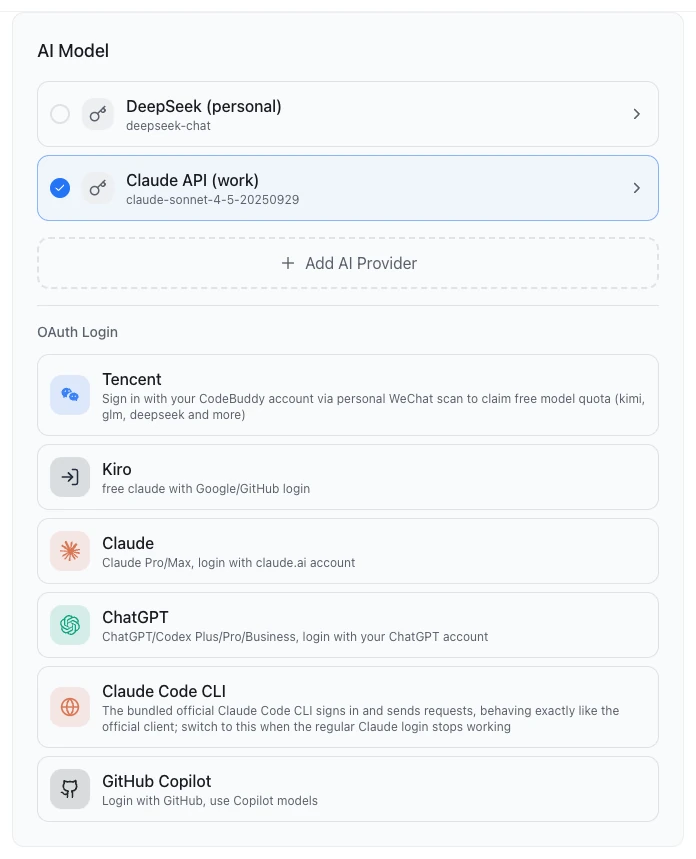
Halo treats each signed-in account and each API key as one AI source. Settings › AI Model lists all of them; the source selected with the radio button is the default.
| Source type | Where to add it | What the expanded card offers |
|---|---|---|
| Signed-in account (Claude, ChatGPT, GitHub Copilot, Tencent, Kiro) | The "OAuth Login" group below the list | Edit (opens "Edit Account"), Logout |
| API key (Custom API) | Add AI Provider | Edit, Delete (asks you to Confirm Delete) |
| Claude Code CLI (macOS only) | Claude Code CLI in "OAuth Login" | Remove only |
- Saving a source makes it the current source.
- Deleting the current source makes the first remaining source current.
- Logout has no confirmation, and Halo also tries to sign the account out on the provider's side.
Your options may differ
The sign-in options depend on the Halo build you use. A Halo provided by your company may show different sign-in options, such as a "Preset API" group. Go by what your screen shows.
Use several accounts side by side
You can sign in to several accounts of the same service, for example a personal Claude account and a team Claude account. Each account is its own source: you can name each one and switch between them in any conversation.
Add another account
- Open Settings › AI Model and find the service you already signed in to under "OAuth Login". Once one account exists, that row's description changes to "Add another account".
- Click it and complete the sign-in. The steps are the same as the first time; see Connect an AI model.
- When the sign-in finishes, a new card appears in the list, showing the account name.
Claude Code CLI allows one source only; it doesn't support several accounts.
Rename an account
- Click Edit on the account card to open "Edit Account".
- Type a name you'll recognize, such as "Work", in Display Name. The name can't be empty.
- Click Save.
"Edit Account" can't change the credentials, endpoint or model list. Its Model dropdown only chooses which model's settings to adjust: "The model in use does not change." To change models, use the model card next to the composer.
Sign in again with the same account
When a sign-in expires, or you want to update an account's model list, click the same service under "OAuth Login" and sign in with the same account again. Halo updates the existing card instead of adding a duplicate.
Use an API key and a custom endpoint
When your company or a model provider gives you an API key (and maybe an address), connect it with Custom API. No key yet? See Get an API key.
- Open Settings › AI Model and click Add AI Provider.
- Under Provider, pick whose key it is. The default is OpenAI API. Type a name in "Search providers..."; the "Recommended" group comes first.
- Change the Display Name if you like. Paste the key into API Key. Get API Key opens the provider's page for getting a key.
- API URL is filled with the official address. If you use a company gateway or proxy, replace it with the address you were given.
- Click Fetch Models. When you see "Found N models", pick one under Model. Model not in the list? Click Use custom model ID, type the model ID, then click Apply.
- To check the connection first, click Test connection and wait for "Connection successful". You can also save without testing.
- Click Save. When you edit an existing source, the button reads Update.
Which format to choose: the provider you pick sets the request format. There is no separate format switch.
| What you have | Choose as provider |
|---|---|
| A key from one provider (DeepSeek, Kimi, Zhipu and so on) | That provider's name in the list. See the table in Get an API key |
| An address and a key, format unknown | OpenAI API ("Official and all compatible providers"), with the address in API URL |
| The provider says explicitly it uses the Anthropic (Claude) format | Claude (Anthropic) API |
For company gateways, proxies and preset providers, see Model gateway and proxy.
Choose the model for each conversation
The model card sits in the composer, next to Send, and shows the model the current conversation uses. Each conversation can use a different model.
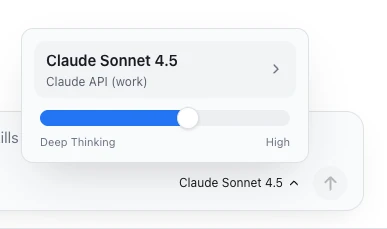
- In a conversation, click the model name next to the composer. The card shows the model and account (tooltip "Switch model"), plus Context window and Image input ("Supported" or "Not supported") when Halo knows them.
- Click the model name to open the model list. The list is grouped by source, each group titled "source name · account", and the current source has a dot labelled "Active".
- Click the model you want.
The model you pick is pinned to this conversation and also becomes the default for new conversations. Other existing conversations keep the model pinned to them.
- If the pinned account is removed, the conversation falls back to the current default source.
- With no source at all, the card shows "Configure AI Source". With sources but no model chosen, it shows "No model selected" and "Select Model".
- On a phone (the Android app, or a browser window narrower than 640 px), the list is the "Select Model" bottom sheet. You can also open it from the header More › Model.
Done
The card shows the model you just picked, and your next message is answered by it.
Deep Thinking
Deep Thinking sets how long the model thinks before it answers. Higher levels usually give more careful answers, but they are slower and use more tokens. The slider sits at the bottom of the model card, with the current level on its right.
| Slider level | What it means |
|---|---|
| Off | No thinking; answers directly |
| Low · Medium | Thinks a little, answers fast |
| High | The default level |
| Extra High · Max | Thinks the most, for hard problems |
- The level is saved with the current conversation. The last level you picked seeds new conversations on this device.
- When a conversation has no level of its own, Halo uses the model's Reasoning Effort from Model Configuration; if that is Default too, it uses High.
- Each agent engine accepts only the levels it supports, and Halo maps the rest to the nearest one:
| Engine | Mapping |
|---|---|
| Claude Code SDK, Halo SDK | "Extra High" runs as "High"; "Off" means no thinking |
| Codex SDK | "Off" runs as "Low" (this engine can't turn thinking off); "Max" runs as "Extra High" |
Per-model settings
Each model under each account can be tuned on its own. Expand Model Configuration in the Add AI Provider / Edit Provider form, or in "Edit Account" for a signed-in account. When Halo knows nothing about the model, this section opens by itself.
| Setting | What it does | Range and hints |
|---|---|---|
| Context Window | How many tokens the model can see at once | 1–2,000,000 |
| Max Output Tokens | The most tokens one reply can contain | 1–1,000,000; below 20,000 you get a warning about the auto-compact summary |
| Vision | Whether the model reads images directly | When off, images are turned into text by on-device OCR |
| Reasoning Effort | How long this model thinks when the conversation has no Deep Thinking level of its own | Default, Off, Minimal, Low, Medium, High, Extra High, Max |
- The Visual tab is a form. The JSON tab lets you edit the values directly; changes apply when you click outside the editor.
- The footer shows where the values come from: a built-in preset, the provider's model catalog, or "No preset found — verify these values match your model". For a model Halo doesn't recognize, it assumes a 200K context and 64K output.
- A model ID ending in
[1m]gets a 1-million-token context window. - Reset to preset clears your changes.
- Turn Vision on only if the model really reads images. For more on images, see Files and images.
Refresh the model list
When a provider releases new models, the lists for signed-in accounts update on their own: Halo checks when it starts, when the window comes back to the front, when the computer wakes from sleep, and when you open a model list. To update right away, click ↻ Refresh Models at the bottom of the model list and wait for "Models refreshed successfully."
API-key sources don't update their list on their own. To update one, click Edit on that source, then Fetch Models.
Remaining quota
Desktop onlySome providers report how much quota an account has left. With such an account, a small ring appears next to Send, to the left of the model card. Hover over it or tap it for details: Total quota, Used, the amount remaining, Time until reset: and a Manage quota link.
- The ring turns amber when less than 25 % is left.
- If the last refresh failed, you see "Data may be outdated".
- Providers that don't report quota show no ring. The browser and Android clients of Remote Access don't show it either.
A Digital Human's own model
Each Digital Human has its own model setting, changed in its Capabilities and settings › Model & Capabilities. The default is Follow global. You can give it a model of its own and go back with Reset to global. A model recommended in the Digital Human package is marked "Author recommends".
- In a Digital Human's chat, the model card is read-only: it shows the model this Digital Human uses and Change in its settings.
- The card only lets you adjust Deep Thinking, and that level is "Also used for its IM replies and scheduled runs."
- If the account a Digital Human was set to use is removed, it follows the global choice.
Claude Code CLI sign-in
Desktop onlyIf the regular Claude sign-in stops working, you can sign in through the official Claude Code CLI that ships with Halo. The CLI signs in, stores its own credential and sends the requests itself; Halo keeps no token.
Requirements:
- macOS only, and only from Settings › AI Model; it isn't offered during first-run setup. On other systems you see "Delegated sign-in is only available on macOS in this version."
- The default Claude Code SDK engine; see Agent engines.
- One per computer.
- Open Settings › AI Model and click Claude Code CLI under "OAuth Login". The "Sign in with Claude Code CLI" dialog opens.
- Click Run in Halo terminal (a workspace must be open), or click Copy command and run it in your own terminal.
- Finish the sign-in in the terminal. The dialog notices and creates the source once the sign-in completes.
This source's card has Remove only, no Edit. Its models come from the built-in Claude subscription list.
Where keys are stored
Everywhere in Halo's interface, API keys and tokens show as ***. Edit also shows the key masked; saving without changing it keeps the original key.
In the public Halo build, these credentials are stored in plain text on your computer in ~/.halo/config.json. With Developer Mode on, the request log also records full keys. See Security, privacy and data flow.
Troubleshooting
An error appears when fetching models or saving
What each message means and what to do is in Connect an AI model. Settings › AI Model shows the same messages as first-run setup.
Fetching models says "Endpoint not found, check the URL"
- The provider for a third-party or company gateway is set to Claude (Anthropic) API. Unless the gateway says explicitly it uses the Anthropic format, choose OpenAI API instead.
- Write the API URL up to the version, for example
https://example.com/v1. If the address already has a version (such as Zhipu's/api/paas/v4), don't add/v1.
I picked a model in "Edit Account", but the conversation still uses the old one
The Model dropdown in "Edit Account" only chooses which model's settings to adjust; it doesn't switch models. Switch in the conversation's model card.
I clicked "Refresh Models" and the new model still isn't there
Refresh Models only updates signed-in accounts. For an API-key source, click Edit, then Fetch Models, or enter it with Use custom model ID.
"A different account was authorized. Add it as a new account instead."
While signing in again to one account, you signed in with a different one. To keep that account too, add it separately with "Add another account".
"CLI-delegated sources run on the Claude Code engine…"
The current engine isn't Claude Code SDK. Go to Settings › Advanced › AI Agent Engine, choose Claude Code SDK and restart, or switch to another source in the model card.
The remaining-quota ring doesn't show
It only appears for providers that report quota, and only in the desktop app. See Remaining quota.
Next steps
- Get an API key: where each provider issues keys and which name to pick in Halo.
- Agent engines: the engine affects Deep Thinking, Claude Code CLI sign-in and more.
- Model gateway and proxy: for a company model gateway or a network proxy.