
A tour of Halo
Learn the Halo 3.0 window: the six entries on the left rail, the conversation view, composer buttons, the More menu, the task panel, search and Settings.
Can't find something? You can also just ask Halo, for example "Where do I open the knowledge base?". Below, everything is described by where it is on screen.
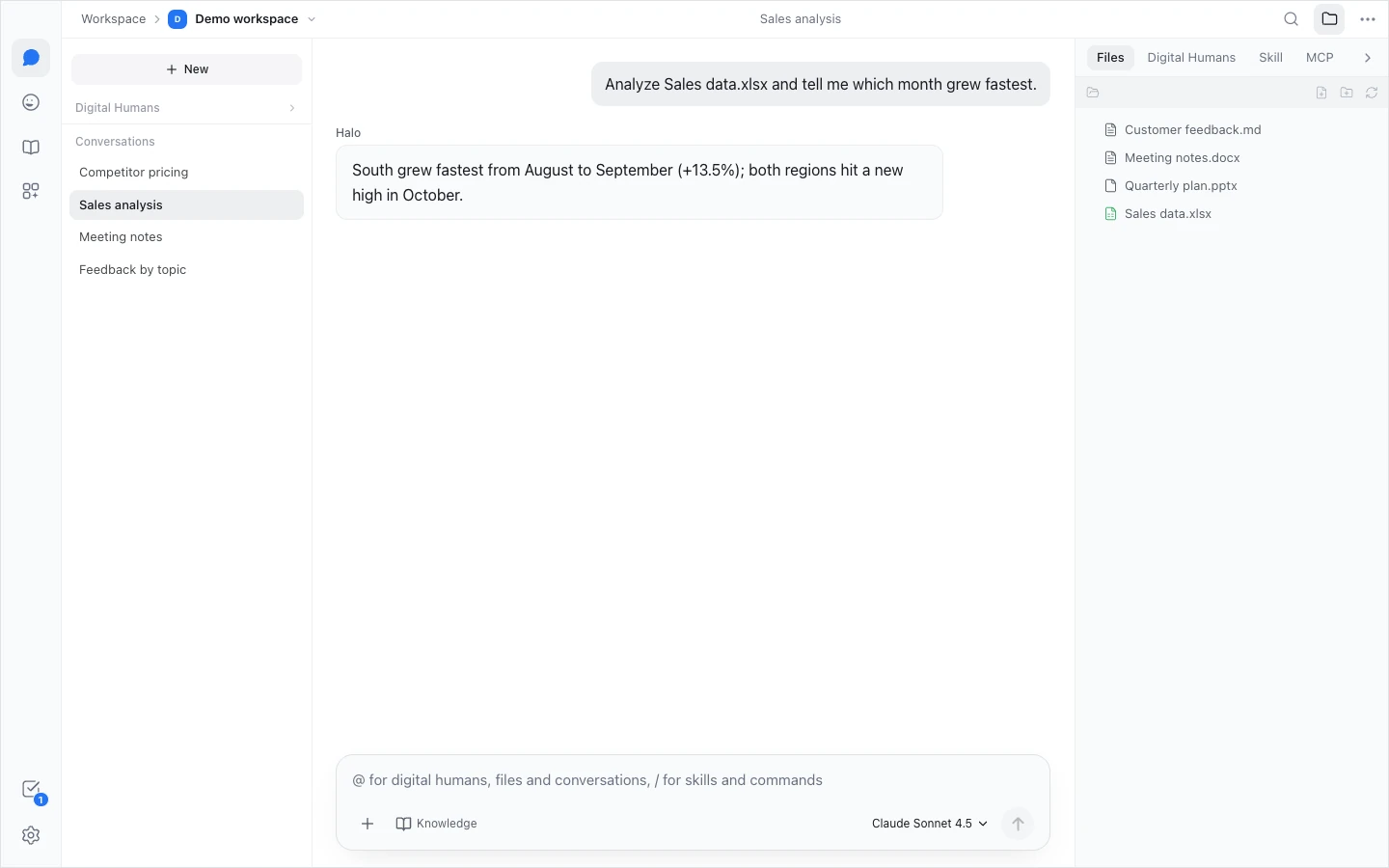
The left rail
The column of icons on the far left. The top four are the main places; the bottom two are tasks and settings. The icons have no text; hover over one to see its name.
| Entry | What it's for |
|---|---|
| Conversation | Talk to Halo and give it tasks. It opens your most recently used workspace; the first time, that's the Halo Workspace |
| Digital Humans (hover shows "Digital Humans · Extensions") | AI members that stay on duty. The page has three tabs: My Digital Humans, Teams and Capability library (skills and MCP connections) |
| Knowledge Base | Import your documents so the AI can cite them in answers |
| Store (hover shows "Explore · Store") | Install Digital Humans and skills that others have made |
| Tasks (bottom) | Opens the task panel. The number on the icon counts tasks that are running or need you |
| Settings (bottom) | All settings |
The conversation view
Click Conversation. From left to right there are four areas:
- Conversation list: + New at the top, then Pinned, Digital Humans (conversations with Digital Humans in this workspace) and Conversations (your direct conversations with Halo). Each conversation's ⋯ menu has Rename and Delete. Deleting an ordinary conversation doesn't ask for confirmation, so be sure first.
- Conversation: your messages and Halo's, including its thinking, the tools it uses and its task plans. The message box is at the bottom.
- Canvas: appears on the right when you preview a file or open the browser or a terminal. You can maximize it or close it.
- Workspace resources: the far right, with Files, Digital Humans, Skill and MCP tabs. It opens by itself when Halo writes a file.
Along the top:
- On the left, Workspace › the current workspace's name. Click the name to switch workspaces; the menu also has New Workspace and Manage workspaces.
- In the middle, the current conversation's title.
- On the right, Search, a folder icon that opens or closes workspace resources, and More.
Composer buttons
| Button | What it does |
|---|---|
| + (Add files, context and capabilities) | Add: attach files and folders from your computer, nothing is uploaded. Context: reference a conversation, or chat with a Digital Human. Capabilities: switches for Web Control, AI Terminal, Text Recognition, Operate Halo and Team Collaboration |
| Knowledge | Load knowledge bases into this conversation |
| The model name (next to Send) | Change this conversation's model and its "Deep Thinking" level |
| Send / Stop | Turns into a red square while a reply runs; click it or press Esc to stop |
Type @ in the message box to pick Digital Humans, files and conversations, or / for skills and commands.
New conversations start with Web Control and Team Collaboration on; the other capabilities start off. When Halo needs one that's off, it asks you and highlights the switch in the + panel, but it can't turn it on itself. More in Capabilities.
The More menu
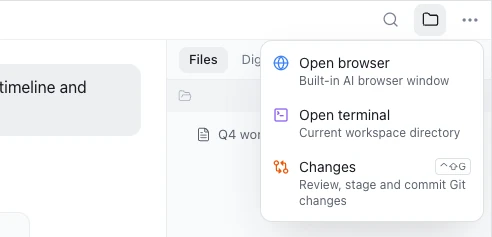
Click More (⋯) at the top right:
- Open browser: opens the built-in AI Browser window. Desktop app only.
- Open terminal: opens a terminal in the current workspace's folder. macOS and Windows only.
- Changes: review, stage and commit Git changes. Shortcut ⌃ ⇧ G (macOS) / Ctrl Shift G (Windows, Linux).
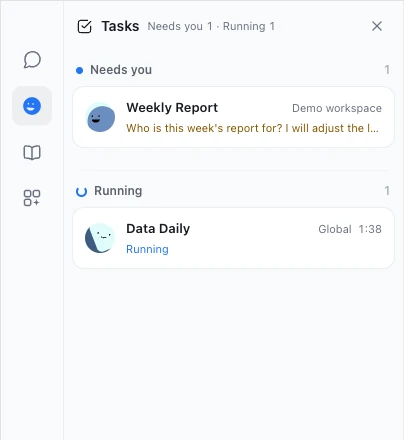
The task panel
Click Tasks at the bottom of the rail to open the task panel next to it. It has three groups:
- Needs you: questions waiting for your answer, tasks that failed, finished results you haven't looked at, and teams waiting for your decision.
- Running: conversations that are replying, and Digital Humans that are running or queued.
- Pinned: conversations you pinned.
Click an item to go there. A Digital Human waiting for an answer opens right at its question; answer it there. More in The task panel.
Search
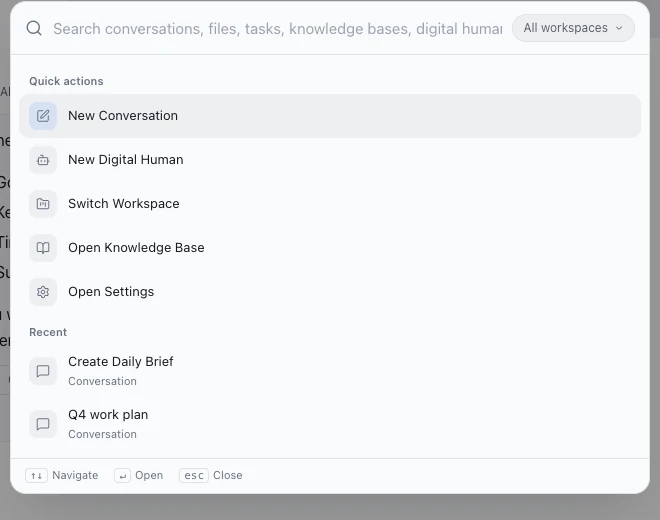
Press ⌘ K (macOS) / Ctrl K (Windows, Linux), or click Search at the top right, to:
- search conversations, files, tasks, knowledge bases and Digital Humans;
- run Quick actions: New Conversation, New Digital Human, Switch Workspace, Open Knowledge Base, Open Settings.
To search only the current conversation, press ⌘ F / Ctrl F in the desktop app. The conversation list has no search box of its own; use this search to find older conversations.
Workspaces
The Halo Workspace is the built-in default: it works without choosing a folder and suits everyday questions and one-off tasks. For a real project, create a workspace linked to the project folder, so its files, conversations and memory stay separate. More in Workspaces.
Settings
Click Settings at the bottom of the rail. The sections on the left are: AI Model, Message Channels, App Store, Appearance, System, Advanced, Remote Access, Recommend Halo and About. System, Advanced and Remote Access appear only in the desktop app, not when you open Halo remotely from a phone or browser. Each setting is explained in the Settings reference.
After you close the window
On macOS and Windows, closing the window only sends Halo to the background, and Digital Humans, schedules and Remote Access keep working. On Linux, closing the window quits Halo. To keep Digital Humans on duty, see Keep Digital Humans running.
On a phone or in a browser
In the Android app, or when you open Halo remotely in a phone browser, the screen is narrow: the left rail becomes a Navigate button at the top, and the top-right buttons move into More. To connect from your phone, see Halo on your phone.
Next steps
- Workspaces: give a project its own workspace.
- Digital Humans overview: what AI members on duty can do for you.
- Capabilities: what Web Control, AI Terminal, Operate Halo and the other switches do.
- Glossary: what workspace, Digital Human, skill, knowledge base and other terms mean.