
Install Halo
Download and install Halo, handle the first-launch prompts, and set up the command environment on Windows. “Let's set things up” means Halo is installed.
This is step 1 of Get started. Halo can't help with it because it isn't installed yet. Follow the part for your system; most people finish in a few minutes.
Before you start
| Device | Requirement | Package |
|---|---|---|
| Mac | macOS 12 or later, Apple silicon or Intel | .dmg |
| Windows PC | Windows 10 or later, 64-bit (x64) | .exe installer |
| Linux PC | 64-bit (x64), glibc 2.34 or later, such as Ubuntu 22.04, Debian 12 or newer | .AppImage |
| Android phone | Android 7.0 or later | .apk, only for connecting remotely to the Halo on your computer |
- You don't need Node.js, npm or the command line.
- There is no Windows ARM build, no iOS app package, and no
.deb/.rpmpackage. - Macs older than macOS 12 stay on Halo 2.x; Linux with glibc older than 2.34 stays on 2.1.15.
1. Download
Open the download section of the Halo website. The page detects your system, including Apple silicon vs Intel on a Mac. Click Download. Every package is also on GitHub Releases.
To pick the file yourself:
| Your device | Download this file |
|---|---|
| Mac (Apple silicon: M1, M2, M3, M4 and later) | Halo-<version>-arm64.dmg |
| Mac (Intel) | Halo-<version>-Intel.dmg |
| Windows PC | Halo-Setup-<version>.exe |
| Linux PC | Halo-<version>.AppImage |
| Android phone | Halo-<version>.apk |
Not sure which chip your Mac has? Open the Apple menu › About This Mac and look at the "Chip" line. A name starting with Apple M means Apple silicon; a "Processor" line that says Intel means an Intel Mac.
2. Install and open
Mac
- Double-click the
.dmgfile you downloaded. - In the window that opens, drag the Halo icon onto the Applications folder.
- Open the Applications folder and double-click Halo.
- The first time, macOS asks whether you're sure you want to open an app downloaded from the internet. Click Open.
The official Mac release is notarized by Apple, so this ordinary prompt is all you should see.
Windows
- Double-click
Halo-Setup-<version>.exe. - If you see "Windows protected your PC", click More info, then Run anyway. Halo's Windows installer isn't code-signed yet, so Windows and some antivirus tools show this warning.
- Follow the setup wizard. You can change the install folder there.
- When setup finishes, open Halo.
Linux
Make the downloaded file executable:
bashchmod +x Halo-<version>.AppImageDouble-click the file, or run it from a terminal:
bash./Halo-<version>.AppImage
On Linux, closing the window quits Halo
On macOS and Windows, closing the window only sends Halo to the background, and Digital Humans and schedules keep running. On Linux, closing the window quits Halo, and background work stops too. The Linux build also has no AI Terminal, and "Auto Launch on Startup" has no effect there.
3. Windows: set up the command environment
This screen appears only on Windows, before anything else. If Halo can't find Git on your computer, it first shows "First-time setup required": the AI needs a command environment to run system commands such as git, npm or pip. You install it once.
- Keep Auto download and install selected (it's marked "Recommended") and click Continue.
- The screen shows "First-time initialization, please wait...". Wait for the progress bar to finish. The installer already contains the files it needs, so normally nothing is downloaded.
- After "Initialization complete", Halo moves on by itself.
If you choose Skip, install manually later, Halo starts in "Limited functionality mode": the AI can chat and write code but can't run system commands. To install it later, click Install now in the banner at the top of the conversation view.
4. Choose language and theme
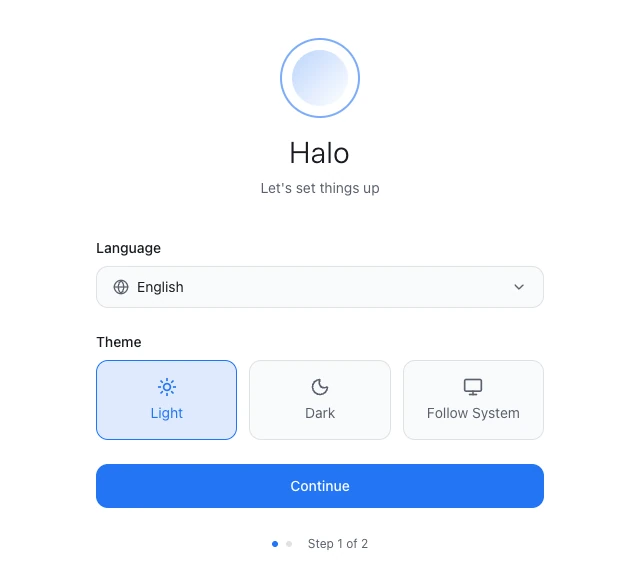
When Halo opens, it shows "Let's set things up":
- Under Language, pick your language.
- Under Theme, pick Light, Dark or Follow System.
- Click Continue.
Done
When you see "Welcome to Halo" and "Select a method to start", Halo is installed. Next, connect an AI model.
Updating Halo later
- Halo checks for new versions and downloads them in the background. When one is ready, it shows "New version Halo {version} available". Click Restart now, and a few seconds later you're on the new version. On Windows, if the button says Install now, this update uses the installer; just follow it.
- Not now? Click Remind me later, and Halo asks again in 6 hours. Updates marked as required can't be postponed.
- To check right away: open Settings › About and click Check for updates in the Version row.
- Windows users upgrading from Halo 2.x to 3.0 still use the installer this one time. Later versions are prepared in the background and finish with a restart.
Updating, reinstalling over an existing copy, and uninstalling on Windows all keep your data (workspaces, conversations, Digital Humans). Where that data lives: Where Halo keeps your data.
Troubleshooting
The download is slow or fails
Packages are downloaded from GitHub. Try again later, or from another network. The downloaded file name should match the table above.
macOS says Halo "can't be opened" or "can't verify the developer"
Copies downloaded from the official site don't show this. It usually means the copy came from somewhere else or was built from source. If you trust the file: open System Settings › Privacy & Security, scroll to the message about Halo, click Open Anyway, enter your password if asked, and open Halo again.
Halo keeps running after you close the window
On macOS and Windows, closing the window only sends Halo to the background, so Digital Humans, schedules and Remote Access keep working. Open Halo again to get the same window back; on Windows you can also click the Halo icon in the taskbar tray. To quit completely, choose Quit Halo in the tray icon menu. If a Digital Human is on duty or a task is running, Halo warns you first that quitting stops them.
Command environment setup fails
When the screen says "Initialization failed", click Retry first. If that doesn't help, click Download and install manually to open the Git for Windows download page, install it, and reopen Halo; it detects Git automatically. You can also click Skip, use with limited functionality and start using Halo right away.
Your system is too old and Halo won't open
On macOS older than 12, use Halo 2.x. On Linux with glibc older than 2.34, use 2.1.15. More cases: Install and launch problems.
Next steps
- Connect an AI model: sign in or enter an API key so Halo can start working.