---
title: "Quick start: your first task in Halo"
description: "Give Halo a task in one sentence and watch it make a real file. Along the way, learn to add instructions, stop a reply and answer Halo's questions."
type: "tutorial"
audience: ["beginner"]
prerequisites: ["getting-started/setup-ai"]
related: ["getting-started/app-tour", "features/office-documents", "features/image-input"]
lang: "en"
canonical: "https://hello-halo.cc/docs/en/getting-started/first-chat.html"
last_updated: "2026-10-19T00:11:17+08:00"
source: "Halo 3.0.4 docs"
---
# Your first task
Give Halo a task in one sentence and watch it make a real file. Along the way, learn to add instructions, stop a reply and answer Halo's questions.
::: say
> Make me a 5-slide PowerPoint presenting next quarter's team plan, in a clean style.
Halo uses its built-in document skills to make a `.pptx` file; for bigger tasks, it first lists the steps it will take. The finished file shows up in the **Files** panel on the right. Nothing needs to be installed first.
:::
## Before you start {#before-you-start}
- Your AI model is connected and you see "What do you want to do today?". If not, start with [Connect an AI model](https://hello-halo.cc/docs/en/getting-started/setup-ai.html).
## 1. Where you start {#start}
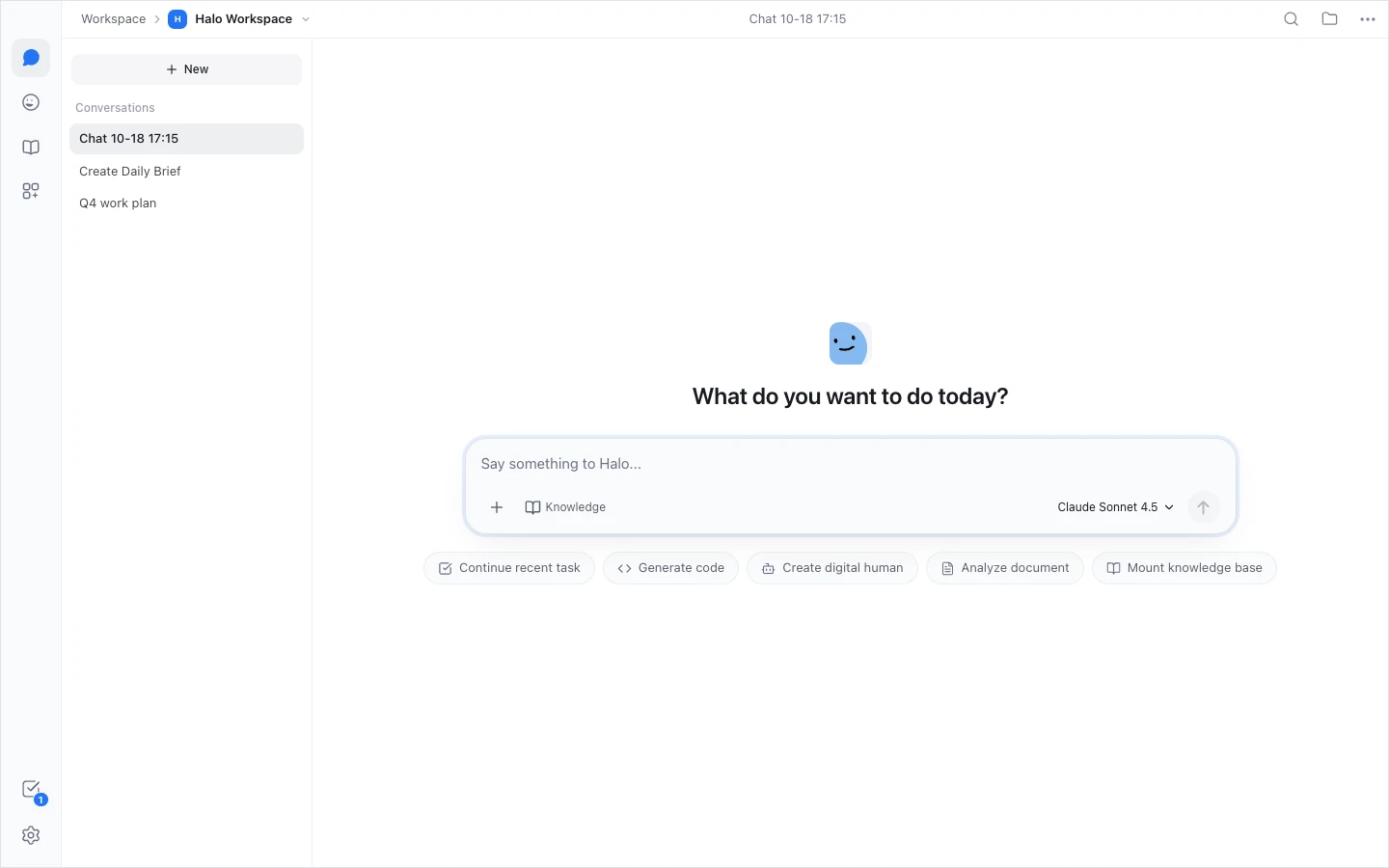
Once a model is connected, you're in the **Halo Workspace**: the default workspace that comes with Halo, ready to use without choosing a folder. In the middle of the screen are "What do you want to do today?" and the message box, which says "Say something to Halo...".
Below the box are five buttons: **Continue recent task**, **Generate code**, **Create digital human**, **Analyze document** and **Mount knowledge base**. A button only puts a sentence into the message box; it doesn't send it, so you can edit before sending. (**Continue recent task** opens the task panel instead.)
## 2. Give Halo your first task {#ask}
Type the result you want and press Enter to send (Shift + Enter adds a new line). Say it the way you'd brief a colleague; no special format is needed. Try one of these:
| What you want | You could say |
|---|---|
| Rewrite some text (takes seconds) | Rewrite this as a formal business email: Hey Sam, can you look at the contract and get back to me soon |
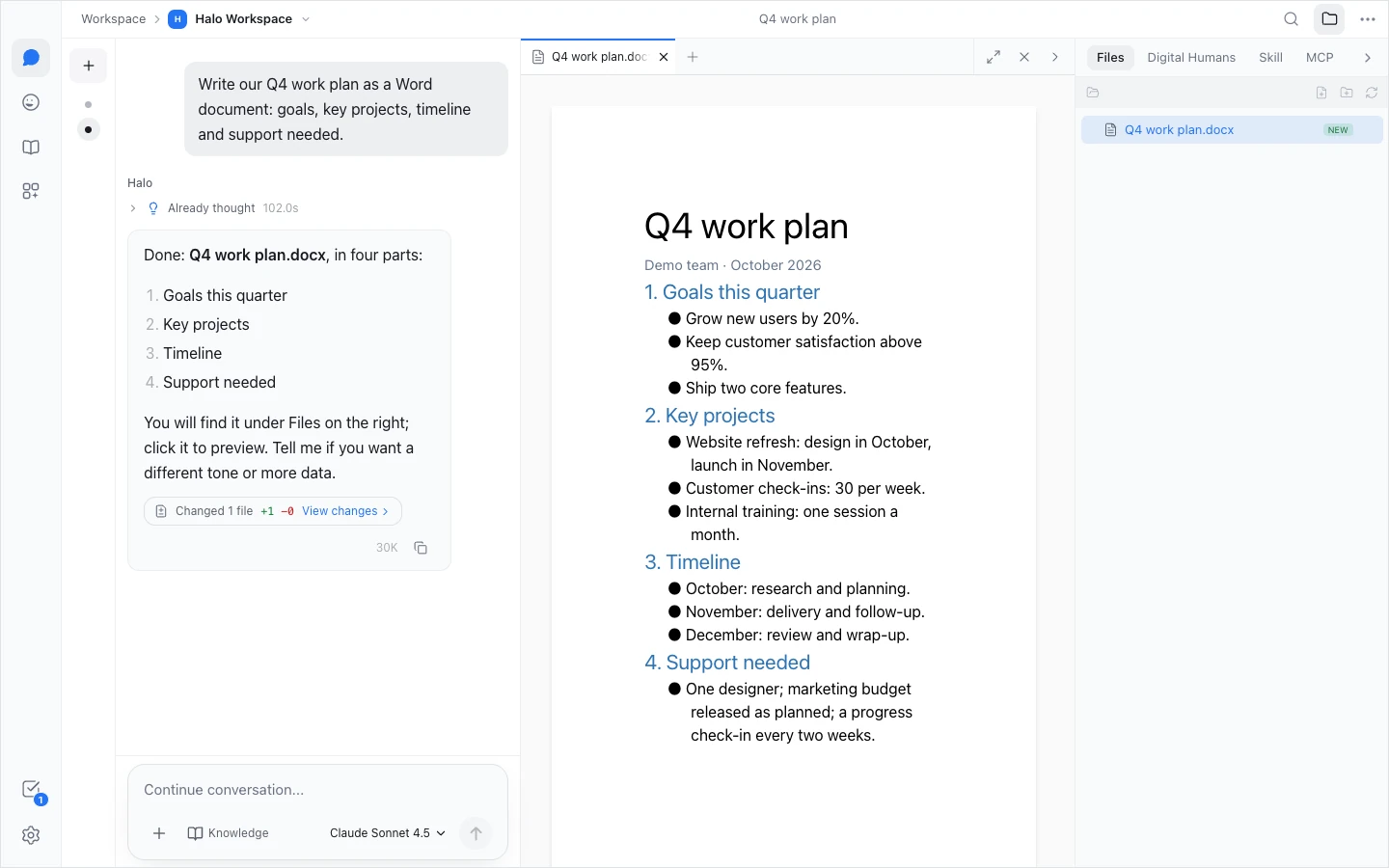
| Write a document | Write our Q4 work plan as a Word document: goals, key projects, timeline and support needed |
| Make a presentation | Make me a 5-slide PowerPoint presenting next quarter's team plan, in a clean style |
| Tidy up a spreadsheet | Summarize this spreadsheet by department and save the result as a new Excel file |
For the spreadsheet, click **+** to the left of the message box, choose **Files and folders**, attach the file, then send. Halo reads files where they are on your computer; nothing is uploaded.
As it works, Halo shows its thinking and the tools it uses. For bigger jobs it also lists a task plan and checks items off one by one.
## 3. Open the file Halo made {#open-the-file}
Files Halo makes are in the **Files** panel on the right. If the panel is closed, click the folder icon at the top right of the window ("Open workspace resources").
Files Halo writes directly are marked "NEW" and files it changes "MOD", and the panel opens by itself when that happens. PowerPoint, Word and Excel files are made by programs Halo runs, so they often carry no mark; look for them by name.
- **Click** a file to preview it in the canvas on the right. Word, Excel, PDF, images and web pages preview there; PowerPoint can't be previewed yet, so the canvas says "Presentation preview is not supported yet" and you click **Open in external application**.
- **Double-click** a file to open it with an app on your computer, such as PowerPoint, Keynote or LibreOffice.
- **Right-click** a file › **Show in Folder** to see where it is on your computer.
## 4. Add instructions, or stop it {#steer}
- **Add instructions**: just send another message, such as "Make the titles dark blue". Halo reads it as soon as it finishes its current step; you don't have to wait for the whole reply.
- **Stop**: click the red square where the send button was ("Stop generation (Esc)"), or press Esc. If the + panel is open, the first Esc closes the panel.
- **The reply was cut off**: when you see "Model response interrupted", click **Continue** and Halo carries on.
## 5. Answer Halo's questions {#answer-questions}
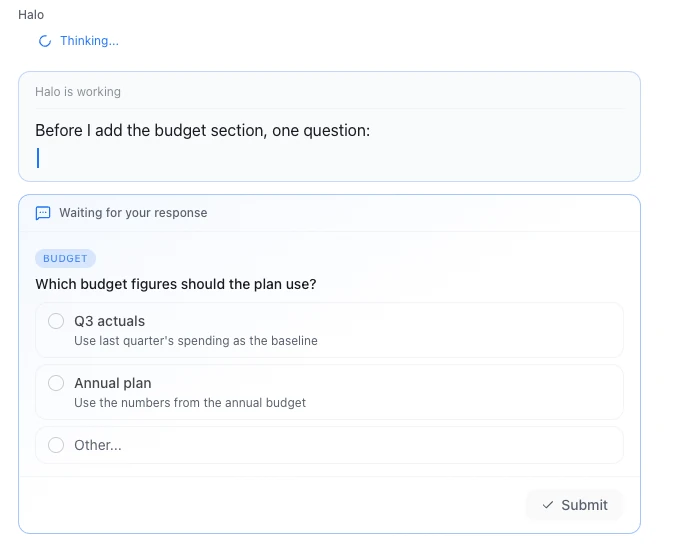
When Halo needs a decision from you, such as which style to use or who to send something to, it shows a question card in the conversation. Pick one or more options, or click "Other..." to type your own answer, then click "Submit".
## 6. Not sure how? Ask Halo {#ask-halo}
Halo reads these official docs to answer questions about itself. For example, ask:
> How do I connect a Feishu bot?
> How do I get a Digital Human to post a daily report to our group at 9 every weekday?
It walks you through the steps from the docs, and does the parts it can for you.
::: done
When a file Halo made shows up in the Files panel and opens with an app on your computer, you've finished your first task.
:::
## Troubleshooting {#troubleshooting}
### You get a red error and no reply
This is usually the model account or the network: quota used up, an invalid key, or an expired sign-in. Look up the exact message in [Error messages](https://hello-halo.cc/docs/en/troubleshooting/common-errors.html).
### You sent an image and the model can't see images
If you see "Current model has no vision — images will be read via local OCR (text only)", Halo reads the text in the image on your computer; you don't need to do anything. For the AI to actually "see" the image, click the model name next to the message box and switch to a model with image input. More in [Files and images](https://hello-halo.cc/docs/en/features/image-input.html).
### You can't find the Files panel
Click the folder icon at the top right ("Open workspace resources"), then switch to **Files**.
## Next steps {#next-steps}
- [A tour of Halo](https://hello-halo.cc/docs/en/getting-started/app-tour.html): the left rail, the conversation view and the task panel in two minutes.
- [Create a Digital Human](https://hello-halo.cc/docs/en/digital-humans/create.html): let Halo work on its own, on a schedule.
- [Office documents](https://hello-halo.cc/docs/en/features/office-documents.html): more requests and tips for Word, Excel, PowerPoint and PDF.